text to speech tutorials
Text to Speech for Church and Faith Websites: A Setup Guide
Church and faith websites publish a lot of writing: weekly reflections, sermon notes, bishop’s letters, parish newsletters, devotionals and Bible study guides. Much of it is read by people who find small text on a screen tiring, or who would rather listen while they drive, cook or walk.
This guide is for the people who look after those sites: parish administrators, diocesan communications teams, ministry volunteers and editors of faith magazines and blogs. It covers what a listen button does for a faith website, what to check before you add one, and how to set it up with WebsiteVoice in about five minutes without a developer.
What Text to Speech Does on a Church Website
Text to speech (TTS) turns the written text of a page into spoken audio. On a church website it appears as a small play button at the top of a post or page. A visitor taps it and hears the reflection, letter or article read aloud by a natural-sounding AI voice, while the page stays open.
Nothing has to be recorded. You keep writing and publishing the way you do now, and every new post gets an audio version automatically. That matters for a small team: a parish office or a volunteer editor rarely has time to record and upload audio for every weekly message.
Why Audio Fits Faith Websites So Well
Faith communities are a natural fit for listening, for a few practical reasons.
- Many readers are older. Congregations and readers of diocesan and Christian publications skew older, and eyesight changes with age. A play button lets someone follow a full reflection without zooming in or reaching for reading glasses.
- Spiritual writing is often heard, not just read. Scripture, homilies and prayers have always been read aloud. Listening to a weekly reflection feels closer to how many people already take in this kind of text.
- People listen during the week, away from a desk. A devotional or a parish newsletter is often taken in on a commute, during chores or before bed. Audio makes that easy on a phone.
- Accessibility is part of the mission. Welcoming everyone includes visitors with low vision, dyslexia or other reading difficulties. The W3C’s guide to how people with disabilities use the web describes the barriers these visitors meet online.
- Many communities are multilingual. Parishes and missions often serve people reading in a second language. Listening is frequently easier than reading in a language you are still learning.
What to Check Before You Add Text to Speech to a Faith Website
Church and ministry sites have a few needs of their own. Run through these before you choose a tool.
1. It Should Work on Every Post Without Extra Work
If audio has to be produced by hand, it will stop after a few weeks. Look for a widget that finds the main text on its own and creates the audio the first time someone presses play. WebsiteVoice does this with Automatic Content Recognition, and if your theme is unusual you can point it at the post body with a CSS selector.
2. It Should Skip Navigation, Donation Boxes and Service Times
Menus, donation buttons, cookie notices, sidebars with Mass or service times, and “upcoming events” lists should not be read aloud in the middle of a reflection. Add the wv-ignore class to any of those elements and WebsiteVoice skips them.
3. It Should Read Your Language Properly
Many dioceses and missions publish in more than one language. WebsiteVoice offers AI voices in 38 languages and accents, including Spanish (Spain, Mexico and US), Portuguese (Portugal and Brazil), Italian, Greek, French, German, Korean, Vietnamese, Arabic and Hindi, plus English variants for the US, UK, Australia and India. Test a post in each language you publish before you launch.
4. The Cost Should Suit a Small Budget
Parish and ministry budgets are tight. Enterprise audio platforms are priced for national publishers and sold through sales calls. A flat monthly plan is the realistic option. WebsiteVoice starts at $9 a month, with a free 14-day trial and no credit card required. Plans are counted in new audio plays per day, so replays of a post that has already been converted are free.
5. It Should Be Easy for a Volunteer to Manage
Faith websites are often run by volunteers who change every year or two. The setup should be a single snippet or a plugin, with settings in a simple dashboard, so the next person can take over without help.
How to Add Text to Speech to a Church Website with WebsiteVoice
The setup takes about five minutes. You need access to your website’s theme or template, or to the plugin area of your CMS.
Step 1: Create a WebsiteVoice Account
Go to websitevoice.com and start the free 14-day trial. No credit card is needed.
Step 2: Choose a Voice and Style the Play Button
Open the Widget Install section of the dashboard. Choose the language and voice for your site, then set the play button colour to match your church or ministry branding. You can listen to each voice before you choose.
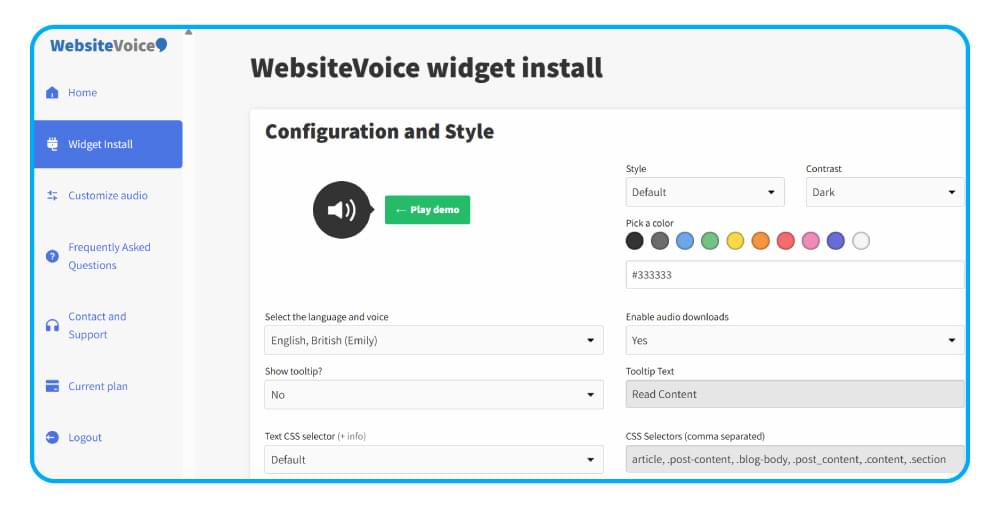
For reflections and letters, a calm, steady voice usually works best. Try two or three voices on an actual reflection from your site before you decide.
Step 3: Paste the Code into Your Website
Copy the installation code from the Installation section and paste it just before the closing </body> tag of your site template, so it loads on every page.
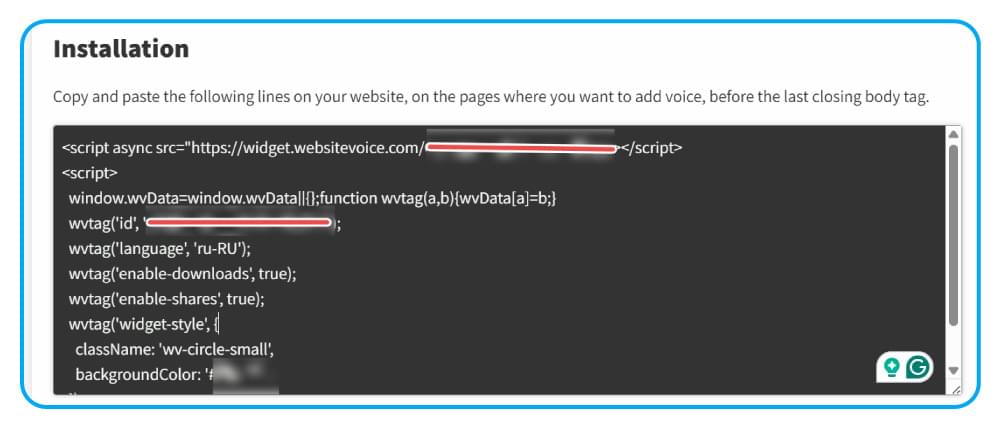
If your church website runs on WordPress, install the official WebsiteVoice WordPress plugin and paste the same code into its settings. A checkbox lets you show the player on posts only, so it stays off your contact and giving pages.
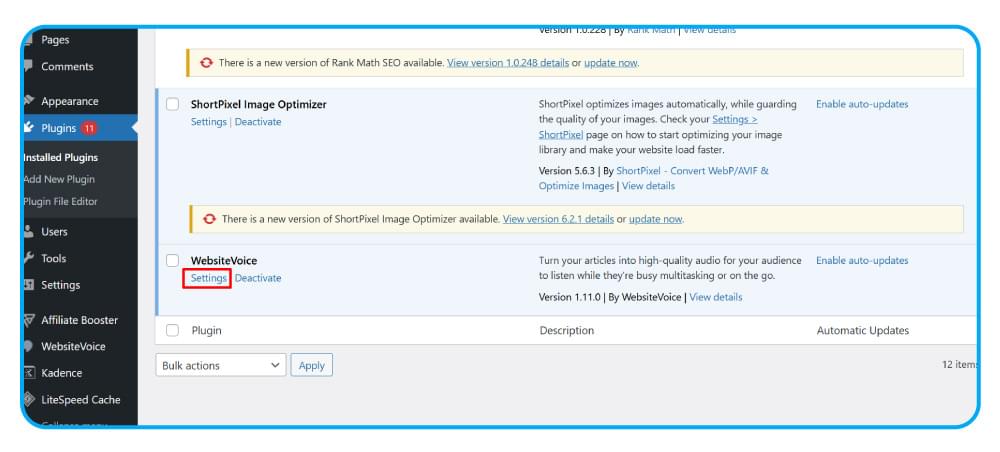
Many church sites are built on WordPress, Wix, Squarespace or Blogger. There are step-by-step guides for WordPress, Wix, Squarespace and Blogger.
Step 4: Authorize Your Domain
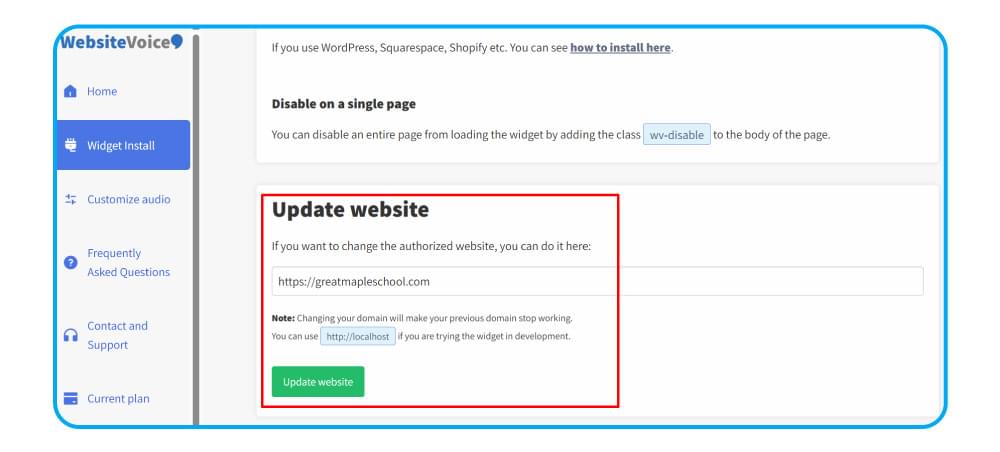
In the dashboard, add your website’s domain under Update Website so WebsiteVoice can show the player on it.
Step 5: Listen to a Post and Tidy Up
Open a recent reflection and press play. If the voice reads the menu, the donation box or the service times, add the wv-ignore class to those elements in your theme. If the player does not appear, set the custom text CSS selector in the widget settings to the element that holds your post text (for example .entry-content or .post-body).
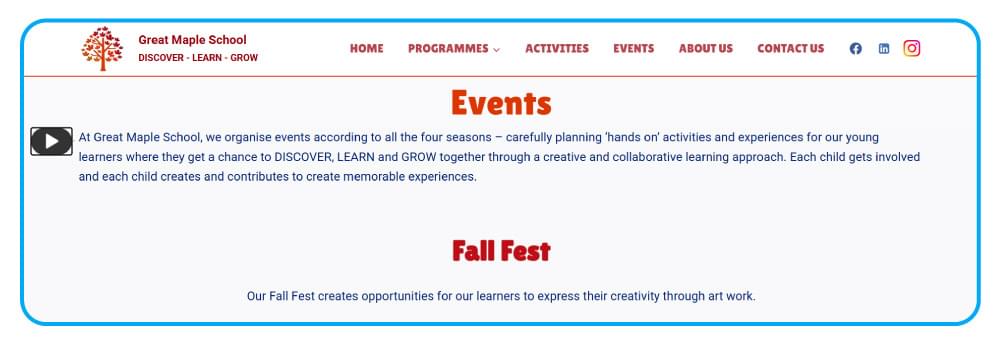
That is the whole setup. Every post you publish from now on gets a play button automatically.
Which Pages to Give Audio First
You do not need audio on every page. Start where people read the most text.
- Weekly reflections, homilies and sermon notes. These are the pages people return to each week and the ones most worth hearing.
- Letters and messages from church leaders. Pastoral letters are often long and formal, and a listen option makes them easier to follow.
- Newsletters and parish bulletins published as web pages. Audio helps members who cannot get to services keep up with community news.
- Devotionals and Bible study guides. Daily readers often listen at the same time each day, which turns the play button into a habit.
Keep the player off pages that are mostly lists or forms, such as event calendars, giving pages and contact pages.
Writing Posts That Sound Good Read Aloud
A few small habits make posts sound better when they are spoken.
- Write Scripture references the way you want them read. References like “Jn 3:16” can come out awkwardly. Writing “John 3:16” in full usually reads more naturally. Listen once and adjust.
- Spell out uncommon abbreviations the first time they appear, such as the name of a diocese office or a ministry programme.
- Keep headings short. The voice reads headings too, and short ones help listeners follow the structure.
- Use the intro and outro settings on the Professional plan to add a short spoken welcome or closing line, such as the name of the parish or publication.
Seeing Whether People Listen
After the first week or two, open the Analytics section of the WebsiteVoice dashboard. It shows daily plays and the posts people listen to most.
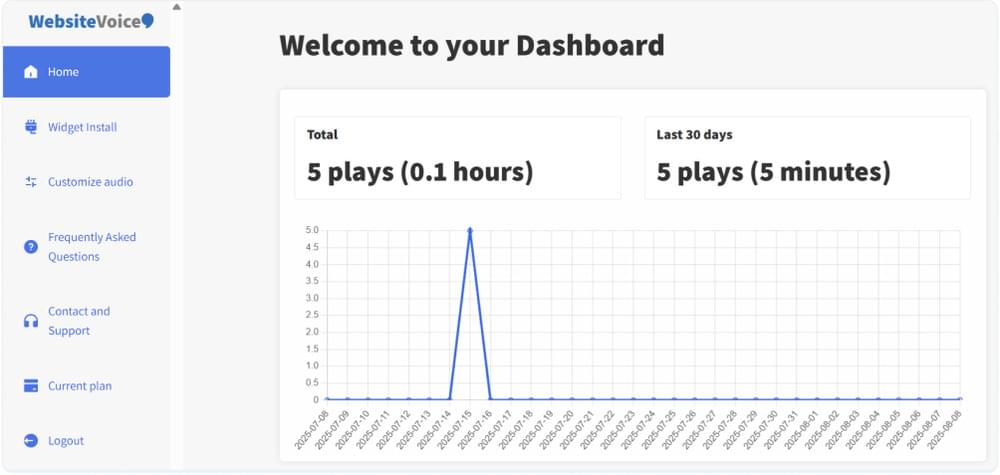
Look for which kinds of posts get played. If weekly reflections get far more plays than news updates, mention the listen button in your newsletter or from the pulpit so more people know it is there. If plays stay low after a month, try moving the button higher on the page or choosing a different voice.
Choosing a Plan for a Church or Ministry Website
WebsiteVoice plans are counted in new audio plays per day. One audio play is about 1,000 words, and only new text counts: replaying a post that has already been converted does not use up a play. Long articles may count as two plays.
- Starter ($9/month) suits a parish site that publishes a few posts a week. The player shows the WebsiteVoice watermark.
- Premium ($29/month or $309/year) removes the watermark and adds more voices, which most dioceses and faith publications will prefer.
- Professional ($49/month or $529/year) adds custom intro and outro text, MP3 downloads and listener speed control. MP3 downloads are useful if you also share reflections by email or in a parish app.
Each account covers one website. A diocese with separate parish sites needs an account for each site.
Conclusion
A listen button is a simple way to make a church or faith website easier to use for older readers, for people with low vision or reading difficulties, and for anyone who would rather listen than read. Every post gets audio automatically, and the setup is one snippet and a few minutes of tidying.
Start the free 14-day trial, add the play button to your reflections and letters, and check the play statistics after a couple of weeks to see how your community uses it.
FAQs About Text to Speech for Church Websites
Can Text to Speech Replace Recorded Sermons?
No, and it is not meant to. A recorded sermon carries the preacher’s own voice. Text to speech is for the written material on your site, such as reflections, letters and newsletters, which would otherwise have no audio at all.
Will the Voice Pronounce Biblical Names Correctly?
AI voices handle most biblical and saints’ names well, especially when the voice matches the language of the site. If a name comes out wrong, try another voice in the widget settings, since pronunciation differs between voices.
Do I Need a Developer to Add a Listen Button to a Church Website?
No. The setup is one code snippet in your site template, or the WordPress plugin. Hiding menus and donation boxes with wv-ignore needs only basic HTML.
Does WebsiteVoice Work on Church Websites in Spanish or Other Languages?
Yes. WebsiteVoice has AI voices in 38 languages and accents, including Spanish, Portuguese, Italian, Greek, French, German and Korean. Choose a voice in the language you publish in.
Is There a Free Plan?
WebsiteVoice has a free 14-day trial with no credit card required. After the trial, plans start at $9 a month.
Related Reading
Text to Speech for News Websites: A Guide for Local Publishers



Improve accessibility and drive user engagement with WebsiteVoice text-to-speech tool