text to speech tutorials
Text to Speech for News Websites: A Guide for Local Publishers
A “listen to this article” button is now standard on the big national news sites. It is much rarer on local, regional and niche news websites, even though those are the sites where readers are most likely to be catching up on the go, reading in a second language, or skimming on a phone with one hand.
This guide is for the people who run those sites: editors and site owners at a city paper, a regional portal, a community radio station’s news page, or a single-topic news blog. It covers what text to speech actually does for a news site, what to check before you add it, and how to switch it on with WebsiteVoice in about five minutes without a developer.
What Text to Speech Does on a News Website
Text to speech (TTS) converts the text of an article into spoken audio. On a news site it usually shows up as a small play button near the headline. A visitor taps it and hears the article read aloud by a natural-sounding AI voice, while the page stays open so they can scroll, share or move to the next story.
For a news publisher, that one button does three jobs at once:
- It gives readers a second way to consume every story. Commuters, people doing chores, and readers with low vision or reading difficulties can follow the news without staring at a screen. Nothing has to be recorded, so every article gets audio, not just the handful you would pick for a podcast.
- It keeps people on the page longer. A five-minute article read aloud is five minutes on your site. That is more time for the ads, the newsletter box and the related-story links to do their work.
- It makes your reporting accessible. Audio is one of the simplest ways to serve visitors who use assistive technology, and it does not require rewriting anything.
If you have not looked at audio articles before, the earlier post on making journalism accessible with text to speech explains the accessibility side in more depth. This guide focuses on the practical setup for a publisher.
Why Local and Regional News Sites Benefit Most
The large publishers already have audio, often built by a developer or bought as part of a six-figure enterprise contract. The gap is at the local and regional level, and that is exactly where a listen button pays off most.
- Your readers are loyal and repeat. A regional news site sees the same people every day. A feature that makes the daily visit easier gets used again and again, unlike on a site people land on once from search.
- Many of your readers are not reading in their first language. Regional portals in places with large migrant or tourist populations, or in countries where the site language is not the reader’s home language, gain from audio because listening is often easier than reading in a second language.
- Mobile is most of your traffic. Local news is read on phones, in short breaks, often with the screen at arm’s length. A play button removes the friction of reading small text on the move.
- You do not have a developer on staff. Enterprise audio platforms assume an engineering team and a sales conversation. A widget you paste into your template is the realistic option for a newsroom of three.
What to Check Before You Add Text to Speech to a News Site
News sites have a few requirements that a personal blog does not. Run through these before you pick a tool.
1. It Must Work on Every Article Automatically
A newsroom publishes several stories a day. If audio has to be generated by hand for each one, it will not happen. Look for a widget that detects the article text on its own and creates the audio the first time someone presses play. WebsiteVoice does this with Automatic Content Recognition, and if your template is unusual you can point it at the article body with a CSS selector instead.
2. It Must Skip the Parts That Are Not the Story
Bylines, image captions, “related articles” lists, ad labels and cookie banners should not be read aloud. WebsiteVoice lets you add a wv-ignore class to any element so it is skipped, which is enough to clean up almost any article template in a few minutes.
3. It Must Handle Your Language and Your Readers’ Languages
Check the supported language list against the language you publish in. WebsiteVoice currently supports 38 languages including Greek, Spanish (Spain, Mexico and US), Italian, Portuguese (Portugal and Brazil), Indonesian, Hindi, German, French, Turkish, Vietnamese, Korean and Arabic, with US, UK, Australian and Indian English variants. If your site publishes in one of these, the voice will read it properly instead of mangling it.
4. The Price Must Fit a Small Publisher
Enterprise audio platforms are sold by sales teams and priced per article at volumes designed for national publishers. For a local site you want a flat monthly plan. WebsiteVoice starts at $9 a month, with a 14-day free trial and no credit card required, and the plans are metered on new audio plays per day rather than on how many articles you publish. A story that nobody listens to costs nothing; a story that a thousand people listen to still only counts once.
5. It Must Not Slow the Page Down
News sites already carry ad scripts, analytics and consent tools. Make sure the audio widget loads asynchronously after the page, so your Core Web Vitals do not take another hit. The WebsiteVoice script is small and loads after the page is usable.
6. You Should Be Able to See Whether It Is Used
Ask for play statistics. If nobody is listening, you want to know so you can move the button or change the voice. If a lot of people are listening, that is a number to put in the next advertiser deck.
How to Add Text to Speech to a News Website with WebsiteVoice
The whole setup takes about five minutes. You need access to your site’s template or theme, or to your CMS’s plugin settings.
Step 1: Create a WebsiteVoice Account
Go to websitevoice.com and start the 14-day free trial. No credit card is needed to start.
Step 2: Pick a Voice and Match the Button to Your Brand
Open the Widget Install section of the dashboard. Choose the language and voice that matches the language you publish in, then set the play button colour and style to match your masthead. You can listen to a sample of each voice before you decide.
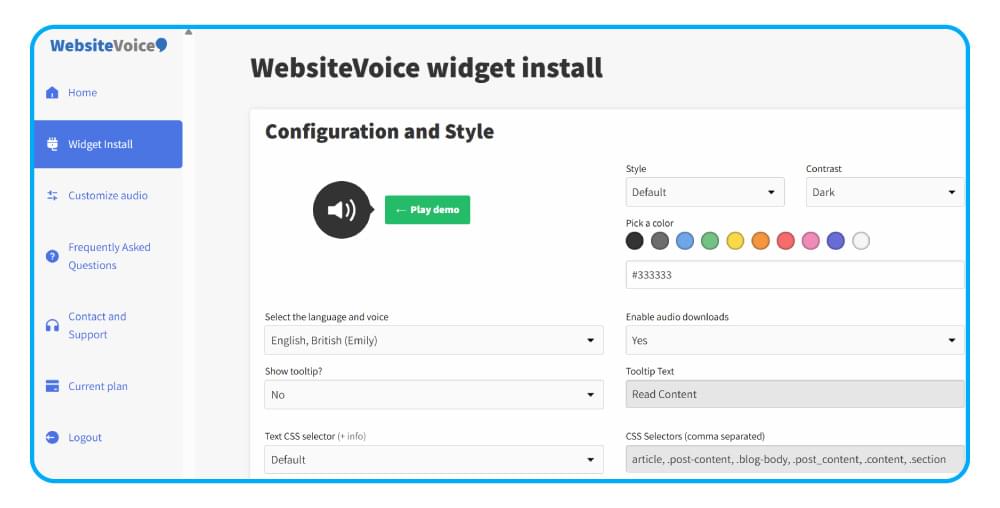
For a news site, pick a voice in the same regional variant your readers speak. A Mexican Spanish voice on a Mexican news portal sounds natural; a Castilian voice on the same site sounds slightly off to every local reader.
Step 3: Paste the Code into Your Site Template
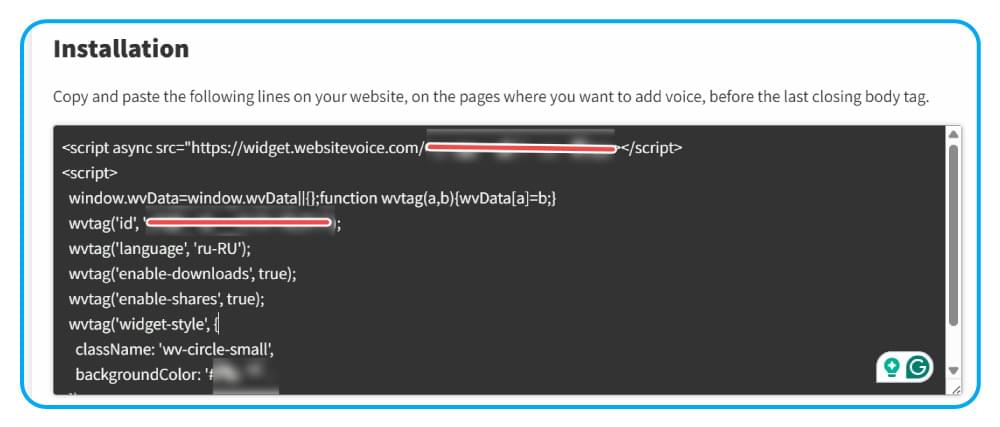
Copy the installation code from the Installation section and paste it just before the closing </body> tag of your site template, so it loads on every article page.
If your newsroom runs on WordPress, install the official WebsiteVoice WordPress plugin instead and paste the same code into the plugin settings. There is a checkbox to show the player only on posts, which keeps it off your contact and about pages.
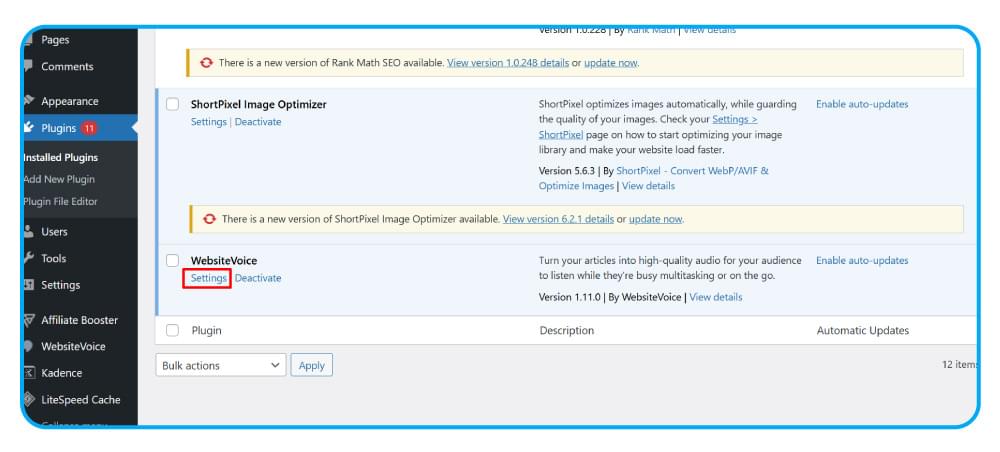
Step-by-step guides exist for WordPress, Ghost, Drupal, Joomla and custom HTML sites, which covers most newsroom CMS setups.
Step 4: Authorize Your Domain
Back in the dashboard, add your website’s domain under Update Website so WebsiteVoice is allowed to show the player on it.
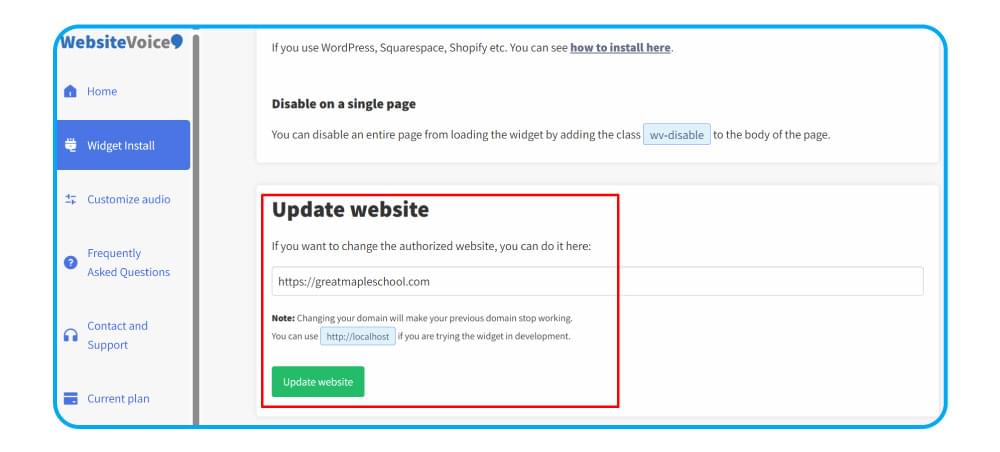
Step 5: Clean Up the Article Template
Open any article and press play. If the voice reads your byline, the photo caption or the “more stories” list, add the wv-ignore class to those elements in your template. If the player does not appear at all, set the custom text CSS selector in the widget settings to the container that holds your article body (for example .article-body or .entry-content).

That is the whole installation. Every article you publish from now on gets a play button automatically.
Where to Put the Play Button on a News Article
Placement matters more on a news site than on a blog, because readers decide within seconds whether they will stay.
- Directly under the headline and byline, before the first paragraph. This is where readers look when deciding how to consume the story, and it is where the large national sites put theirs.
- Not in the sidebar. Sidebars disappear on mobile, and mobile is where most listening happens.
- Keep the button in your brand colour but with enough contrast to be noticed. A grey button on a grey byline row gets ignored.
If your template makes it hard to place the widget in the article header, the CSS selector setting lets you tell WebsiteVoice which element to attach to.
Measuring Whether Readers Use It
After the first week, open the Analytics section of the WebsiteVoice dashboard. It shows daily plays and the articles being listened to most.
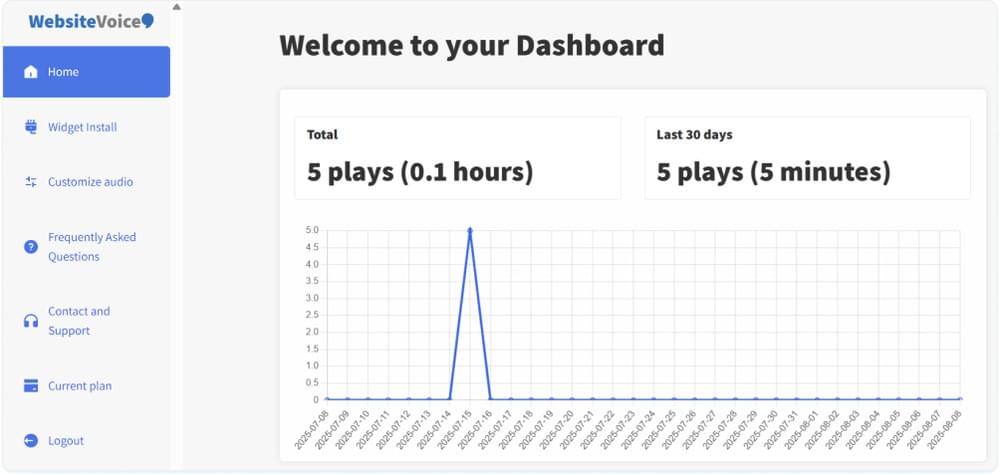
Three things to look for in a newsroom:
- Which sections get listened to. Long-form and opinion pieces usually get more plays than short breaking-news updates. That tells you where audio is worth promoting.
- Whether plays are growing week over week. A listen button is a habit. If plays are climbing, readers are learning that it is there.
- Whether it changes time on page. Compare average engagement time on articles before and after the launch in your web analytics. Audio articles tend to hold readers for the length of the audio.
If plays stay flat after a month, try moving the button higher on the page or switching to a different voice before deciding it does not work for your audience.
Choosing a Plan for a News Site
WebsiteVoice plans are metered on new audio plays per day. One new audio play is roughly 1,000 words converted for the first time; replays of an article that has already been converted are unlimited and free.
- Starter ($9/month) is enough for a small community site publishing a few stories a day, but it keeps the WebsiteVoice watermark in the player.
- Premium ($29/month or $309/year) removes the watermark, adds more voices and removes any possibility of ads in the player, which is what most local news sites will want.
- Professional ($49/month or $529/year) adds custom intro and outro text (useful for a station ident or sponsor read), MP3 downloads and reader-controlled speed, which suits a regional publisher with a bigger daily output.
Each account covers one website. If you run several local titles, each needs its own account.
Conclusion
Text to speech is one of the cheapest upgrades a local or regional news site can make. It gives every story an audio version automatically, keeps readers on the page longer, and makes your reporting available to people who cannot or would rather not read on a screen. The setup is a single snippet and a few minutes of template cleanup.
Start the 14-day free trial, add the play button to your article template, and check the play statistics after the first week to see how your readers respond.
FAQs About Text to Speech for News Websites
Does Text to Speech Work for Breaking News That Is Updated Several Times?
Yes. WebsiteVoice generates the audio the first time a reader presses play. If you update the article text, the next play converts the new version. Long or repeatedly updated stories may count as more than one new audio play.
Can I Use It on a Paywalled News Site?
The widget reads the text that is visible on the page. If your paywall hides the article body from non-subscribers, the player only reads what they can see, which keeps your paywall intact.
Will the Voice Pronounce Local Place Names Correctly?
AI voices handle most place names well, especially when the voice matches the language and region of the site. If an unusual local name comes out wrong, test a few voices in the widget settings, since pronunciation differs between them. In practice this is rarely needed.
Do I Need a Developer to Add Text to Speech to My News Website?
No. The installation is one code snippet in your template, or the WordPress plugin. Cleaning up the template with wv-ignore needs only basic HTML.
Does Audio Help My Site’s SEO?
Not directly. Search engines do not rank pages for having an audio player. The indirect effect is engagement: readers who listen stay longer, and longer engagement is a signal search engines do measure. Treat audio as a reader feature first.
Related Reading
10 Tips To Make Journalism Accessible With A Text-To-Speech Software
Getting Started with WebsiteVoice: Add TTS to Your Website
Trinity Audio vs WebsiteVoice: Which Text-to-Speech Player Fits Your Website?



Improve accessibility and drive user engagement with WebsiteVoice text-to-speech tool