accessibility tutorials
Accessibility Widget vs Text-to-Speech Player: Which Fits?
Search for an accessibility widget and most results are vendors promising that one line of code will make your website accessible and compliant. A text-to-speech player looks similar on the page: a small button, added with a script, often sold with the same “accessibility” wording. The two tools do different jobs, and neither does what most widget ads promise.
This guide explains what each tool is, what the criticism of accessibility overlays says, and how to decide which one, if either, belongs on your site. One point up front: no widget, overlay, plugin or listen button makes a website WCAG or ADA compliant on its own. That includes the WebsiteVoice player.
The Short Answer
- An accessibility widget is a floating menu of display controls (text size, contrast, fonts, spacing) that visitors can switch on. Products that also try to repair your page’s code automatically are usually called accessibility overlays.
- A text-to-speech player is a listen button that reads your articles aloud. It gives your writing a second format, audio, for people who would rather listen.
- Neither one makes your site accessible or compliant. Accessibility depends on how your site is built and written, and add-ons cannot replace that work.
- If you publish articles, a text-to-speech player is built for that job. If you are buying a widget to avoid a lawsuit, read the overlay section first.
What Is an Accessibility Widget?
An accessibility widget for a website is usually an icon in a corner of the page that opens a panel of settings. Common options include larger text, high contrast, a dyslexia-friendly font, extra spacing, highlighted links and a switch to pause animations. Some add a basic read-aloud mode.
Accessibility Widgets vs Accessibility Overlays
The terms are used loosely. The Overlay Fact Sheet, a statement signed by accessibility practitioners including contributors to the WCAG, ARIA and HTML specifications, defines overlays broadly as technologies that “apply third-party source code (typically JavaScript) to make improvements to the front-end code of the website.” It describes three generations:
- Late 1990s add-ons that brought text-to-speech to a website (it names ReadSpeaker and Browsealoud).
- Toolbars that added display controls such as font size and colour.
- Newer products that scan the page and try to automatically repair code problems that block assistive technology.
So by the fact sheet’s definition, a listen button belongs to the same broad family of add-on scripts. What matters is what each one changes and what it claims.
What Is a Text-to-Speech Player?
A text-to-speech player puts a play button on your articles. When a visitor presses it, an AI voice reads the article aloud while they commute, cook or work. It does not change your layout or rewrite your code.
WebsiteVoice is one example. You paste one script line into your site, or install the WordPress plugin, and a player appears on your articles. Its features include 60+ AI voices in 38 languages and accents, speed control from 80% to 170% and MP3 downloads so readers can listen offline. Speed control and MP3 downloads are part of the Professional plan and are included in the free trial.
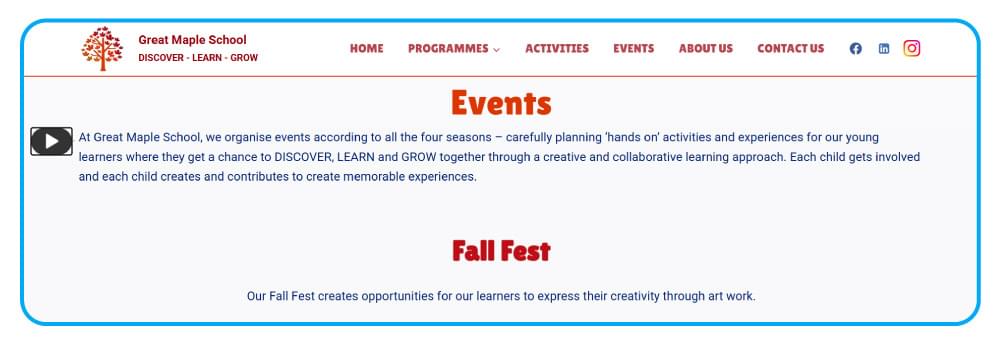
Everything on that list is about how people consume your writing. A player is a content feature, closer to a podcast version of an article than to a site fix.
Accessibility Widget vs Text-to-Speech Player: Side by Side
| Question | Accessibility widget or overlay | Text-to-speech player |
|---|---|---|
| What it changes | How the page looks, and for overlays, the page’s code in the browser | Nothing on the page; it adds an audio version of the article |
| Main job | Display preferences, sometimes automated repair | A second way to consume long-form content |
| Who it is for | Visitors who have not already set these options on their device | Anyone who would rather listen: busy readers, commuters, people who find reading tiring |
| Works with screen readers? | Can interfere, according to users quoted in the Overlay Fact Sheet | Screen reader users already have their own voice and can ignore it |
| Makes your site compliant? | No | No |
| Typical marketing claim to check | “WCAG, ADA and EAA compliance” | “Accessibility” used loosely |
| Best fit | Rarely the best fix; see the criticism below | Blogs, news sites, magazines, guides and course content |
The row that matters most is compliance, and for both tools the answer is no.
Why Neither Tool Makes Your Site Compliant
Accessibility standards describe how a site is built, not what is layered on top of it. The W3C’s introduction to web accessibility puts it this way: “Web accessibility means that websites, tools, and technologies are designed and developed so that people with disabilities can use them.” The key words are designed and developed. Headings, alt text, colour contrast, captions, form labels and keyboard access all live in your templates and your content.
The Web Content Accessibility Guidelines (WCAG) are the W3C’s international standard for accessible web content. Conformance means meeting the success criteria across your content, and the W3C’s evaluation overview is clear that “no tool alone can determine if a site meets accessibility standards. Knowledgeable human evaluation is required.” If a tool cannot even confirm conformance on its own, a script cannot guarantee it.
A text-to-speech player is no exception. It does not add missing alt text, fix a form that cannot be used with a keyboard or caption your videos.
The Criticism of Accessibility Overlays
The criticism comes from practitioners, regulators and, in the small print, some vendors.
Accessibility Practitioners
The Overlay Fact Sheet makes four main arguments:
- Widgets are redundant. The people these features claim to serve usually already have them on their own device. At best, a widget duplicates what the user already has.
- Automated repair is unreliable for image text alternatives, form labels and error handling, and keyboard access.
- Full compliance cannot be achieved with an overlay, because a product that cannot repair every issue cannot meet every requirement.
- Privacy. Overlays that detect assistive technology can reveal that a visitor has a disability, which is sensitive personal data.
It also quotes blind and low-vision users who say overlays made sites harder to use, some of whom block overlays entirely.
Regulators
In January 2025 the US Federal Trade Commission announced a proposed order requiring accessiBe to pay $1 million. The company had claimed its accessWidget plug-in could make any website WCAG compliant. The FTC’s complaint alleged the product “did not make all user websites WCAG-compliant,” making those claims “false, misleading, or unsubstantiated.” The FTC approved the final order in April 2025. It bars accessiBe from claiming its automated products can make any website WCAG compliant without evidence. If you are replacing an overlay, our list of accessiBe alternatives compares the main options.
Vendors’ Own Small Print
The AccessiYes accessibility widget listing on WordPress.org, for example, states that it “does not guarantee conformance with WCAG or compliance with laws such as the ADA, EAA, or other regulations.” Look for that sentence in any product you consider.
Where a Text-to-Speech Player Actually Helps
The W3C’s page on tools and techniques people with disabilities use lists text-to-speech among them, alongside browser settings and screen readers. Many of those users bring their own tools: a screen reader user already hears your whole page and does not need your player. Our comparison of screen readers and text-to-speech explains that difference in detail.
A listen button is for the much wider group who do not run assistive software but would sometimes rather hear your content:
- Busy readers who want to finish a long article while their eyes and hands are elsewhere.
- People who find reading tiring, for example because of dyslexia or low vision, and who have not set up tools of their own.
- Second-language readers, who can follow the text while hearing it.
Judge the player like any content feature: add it, watch whether visitors press play and whether engagement changes, and remove it if nobody uses it.
Which One Does Your Site Need?
Start with your content and your visitors, not with the tool.
You publish articles, news or guides. A text-to-speech player fits, because a listen button gives readers a second way through long-form text. Our roundup of the best text-to-speech widgets for websites compares the options.
Your site is mostly short pages, product listings or an app. A listen button adds little. Put the effort into the accessibility of the pages themselves.
Someone told you a widget will make you compliant. Treat that claim with the same caution the FTC did. Our guide on how to make your website accessible covers practical fixes, and our article on WCAG and text to speech explains what the guidelines ask for.
You want a display widget anyway. Choose one that does not claim compliance and does not interfere with keyboard or screen reader use.
Choosing an Accessibility Plugin for WordPress
Search WordPress.org for an accessibility plugin and you get widgets, overlays, audit tools and text-to-speech players mixed together. Four checks help:
- Read the claims. A promise of legal protection or full compliance is a warning sign, not a feature.
- Check what it changes. Plugins that rewrite page code in the browser are the ones the criticism above is aimed at.
- Test performance. Measure page speed before and after installing.
- Test with a keyboard. The plugin’s own button must work without a mouse.
For a listen button, the WebsiteVoice plugin is on WordPress.org, and our WordPress text-to-speech guide covers setup.
How to Add a Listen Button with WebsiteVoice
Setup takes three steps.
Step 1: Create an Account
Step 2: Customize the Player
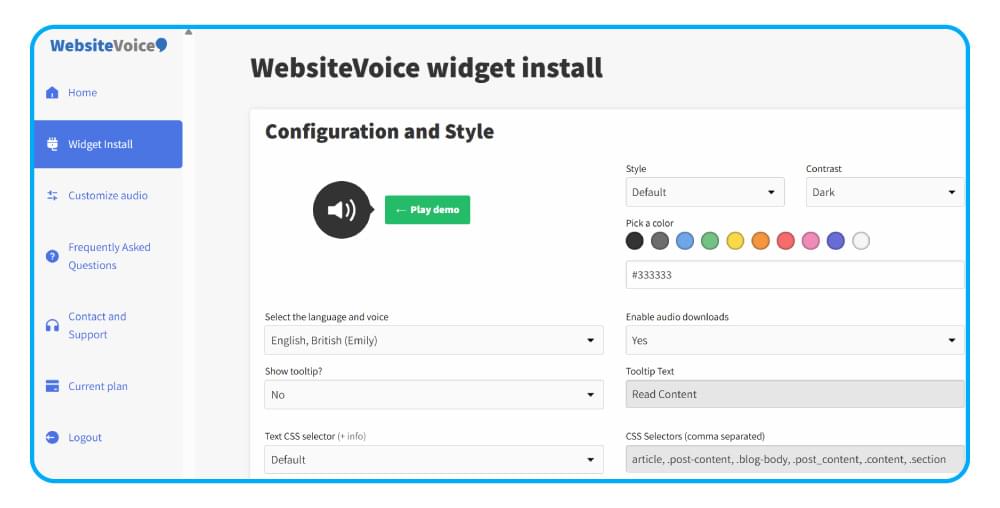
Choose the button style and colour to match your theme, then pick the language and voice.
Step 3: Install the Code
Copy the one script line from the dashboard and paste it into your site, or install the WordPress plugin. Then authorize your website in the dashboard, open a few articles and press play to check that the voice reads the article text.
Finally, check that the player button works with a keyboard on your theme, so the feature adds no new barrier.
Conclusion
An accessibility widget and a text-to-speech player answer different questions. A widget asks, “How should this page look for you?” A player asks, “Would you rather listen to this?” Neither answers whether your site is accessible. That depends on how it is designed, built and written.
If you publish written content, a listen button is a simple, measurable way to reach people who would rather hear it. Try WebsiteVoice free for 14 days and put a play button on your articles.
FAQs About Accessibility Widgets
What Does an Accessibility Widget Do?
It adds a floating button that opens display settings such as text size, contrast, fonts and spacing. Widgets that also try to repair page code automatically are usually called accessibility overlays.
Will an Accessibility Widget Make My Website ADA or WCAG Compliant?
No. Compliance depends on how your site is designed and coded. The W3C says no tool alone can determine whether a site meets accessibility standards, and in 2025 the FTC ordered accessiBe to pay $1 million over claims that its widget could make any website WCAG compliant.
Is a Text-to-Speech Player an Accessibility Overlay?
The Overlay Fact Sheet counts early text-to-speech add-ons as the first overlays. A listen button like WebsiteVoice’s does not rewrite your page or change its display; it adds an audio version of your articles. It does not make your site compliant either.
Do Screen Reader Users Need a Text-to-Speech Player?
Usually not. Their software already reads the whole interface. A player is aimed at visitors who do not use assistive technology but would sometimes rather listen.
Can I Use an Accessibility Widget and a Text-to-Speech Player Together?
Yes, but ask whether the widget earns its place given the criticism above. If you use both, make sure neither button covers content on mobile and both work with a keyboard.
Related Reading
Screen Reader vs Text to Speech: What’s the Difference?
WCAG and Text to Speech: What the Guidelines Actually Require
10 Best Text-to-Speech Widgets and Plugins for Websites (2026)



Improve accessibility and drive user engagement with WebsiteVoice text-to-speech tool