
text to speech tutorials
How to Add a Text-to-Speech Play Button to Framer
Framer is a popular choice for designers and startups who want a polished website and blog without writing code. It also lets you add your own scripts from your project settings, so with a single script you can give visitors a way to listen to your pages and CMS posts.
WebsiteVoice is a text-to-speech widget that turns the written content on your website into audio. Once the WebsiteVoice script is on your Framer site, a play button appears on your pages and visitors can listen instead of read.
In this guide, we’ll show you how to add the WebsiteVoice text-to-speech play button to Framer.
Step-by-Step Guide to Add a Text-to-Speech Play Button to Framer
Framer has a Custom Code section in Project Settings for third-party scripts such as analytics tags and chat widgets. When you add a script there, you choose where it is placed, which pages it runs on and how often it runs, as described in Framer’s guide to adding custom code. That is where the WebsiteVoice script goes.
Follow these steps:
1. Open WebsiteVoice’s dashboard in a new tab. If you don’t have an account yet, you can start your free 14-day trial. No credit card is required.
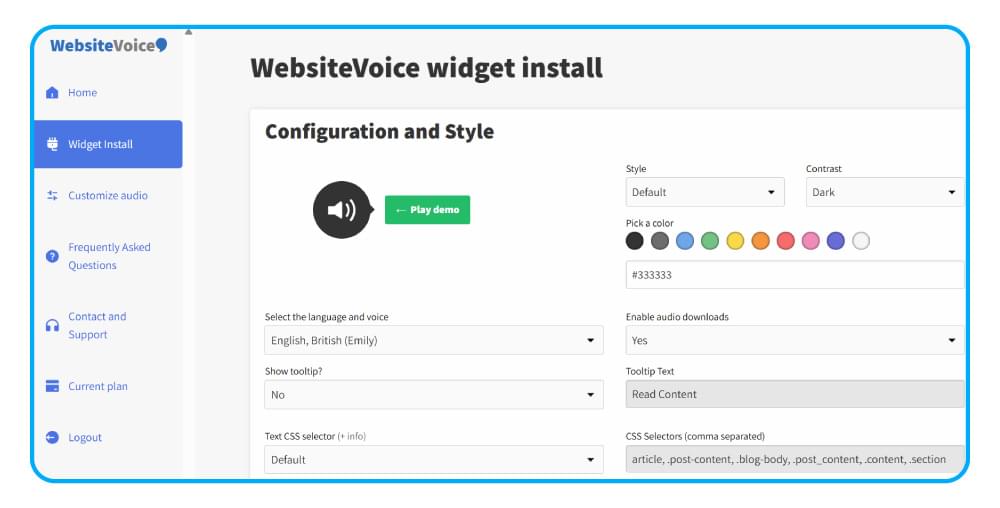
2. In the widget settings, set up the play button the way you want it:
- Choose the language and voice. WebsiteVoice offers 60+ AI voices in 38 languages and accents.
- Customize the style and color of the play button so it matches your Framer design.
- Add custom intro or outro messages if you want a short line before or after each article.
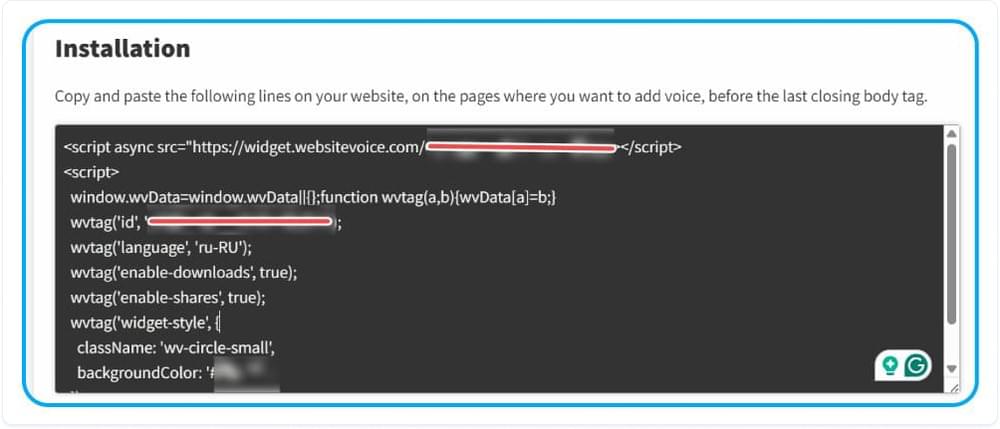
3. Scroll down and copy the WebsiteVoice JavaScript code.
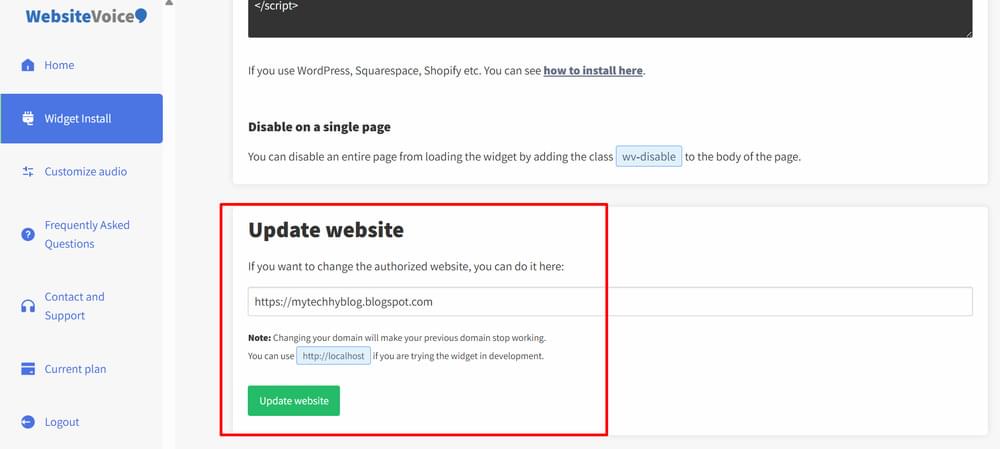
4. Add your Framer site URL in the Update website section so the WebsiteVoice widget is authorized to run on your site. Use the address visitors see, either your own domain or your free Framer address.
5. Now open your project in Framer and open Project Settings.
6. Select the Custom Code tab in the left sidebar.
7. Click Add Script. If you have already added scripts, click the + icon instead.
8. Give the script a name you will recognize later, such as “WebsiteVoice”.
9. Paste the WebsiteVoice code and choose where it is placed. Pick the end of the <body> tag, so the widget loads after your page content.
10. Leave the script on all pages, or select specific pages from the list if you only want the play button on some of them. Your CMS pages, such as blog posts, appear in that list too.
11. Choose Run on every page visit, so the play button loads each time someone opens a page.
12. Publish your project so the change goes live.
13. Open one of your published pages or blog posts. The WebsiteVoice play button now appears, and visitors can click it to listen to the content.

If you want the play button in a specific spot on one page, you can use Framer’s Embed component instead. Open the Insert menu, search for Embed, drag the component onto the canvas and paste the WebsiteVoice code into its HTML section. Framer explains this in its help article on adding an embed script.
Want a listen button on your Framer site? Start your free 14-day trial and paste one script.
Before you add the widget, your Framer pages can only be read. After you add it, the play button appears on the page and visitors can listen to your content on desktop or mobile.
Keep Menus and Buttons Out of the Audio
Framer sites often have menus, buttons and footers that don’t need to be read aloud. WebsiteVoice skips any element with the wv-ignore class. In Framer, you add a class to an element with a small code override, as shown in Framer’s guide to adding a custom class. To keep the play button off a page completely, you don’t need any code: in your WebsiteVoice widget settings, add that page’s URL to the box for URLs where the widget should be disabled (one URL per line). A wildcard URL, such as https://yoursite.com/tag/*, covers several pages at once.
Why Add Text-to-Speech to Your Framer Website?
- Accessibility: Visitors with low vision, dyslexia or reading difficulties can listen to your content instead of struggling through it.
- More engagement: Long blog posts and case studies are easier to finish when people can listen while they do something else.
- Multilingual reach: With 38 languages and accents available, you can match the voice to the language of your pages.
- No design changes: The whole setup is one script in Framer’s settings. Your layouts stay exactly as you designed them.
- Audio analytics: The WebsiteVoice dashboard shows which of your Framer pages and posts people listen to.
Conclusion
Adding a text-to-speech play button to Framer takes a few minutes. Copy the WebsiteVoice script, add it in Project Settings > Custom Code at the end of the body, and publish. Your pages and CMS posts become easier to access and easier to finish, without touching your design.
If you have any trouble adding WebsiteVoice to Framer, get in touch with our customer support.
FAQs About Adding Text-to-Speech to Framer
Where Do I Paste the WebsiteVoice Code in Framer?
Open Project Settings, select Custom Code, click Add Script, paste the code, place it at the end of the <body> tag, choose Run on every page visit and publish your site.
Will the Play Button Show on My Framer Blog Posts?
Yes, if the script runs on all pages or you include your CMS pages in its page selection. Framer lets you pick specific pages, including CMS pages, when you add a script.
Can I Add the Play Button to Just One Page?
Yes. Either select only that page when you add the script in Custom Code, or drop an Embed component on the page and paste the WebsiteVoice code into its HTML section.
Why Don’t I See the Play Button Yet?
Check that you published the project after adding the script and that you are viewing the live site. Also make sure the site address you are visiting is the one you added in the WebsiteVoice dashboard.
Can I Stop Parts of the Page from Being Read Aloud?
Yes. Add the wv-ignore class to any element you want WebsiteVoice to skip, such as navigation or buttons. In Framer, you add a class with a code override.
Do I Need Coding Skills?
No. You only copy the code from your WebsiteVoice dashboard and paste it into one Framer setting.
Related: Getting Started with WebsiteVoice: Add TTS to Your Website



Improve accessibility and drive user engagement with WebsiteVoice text-to-speech tool