text to speech tutorials
How to Add a Text-to-Speech Play Button to Weebly
Weebly makes it easy to build a website or blog with drag and drop, and it also lets you add your own code to every page of your site. You can use that to add an accessibility feature that many Weebly sites are missing: a play button that reads your content aloud.
WebsiteVoice is a simple text-to-speech widget that converts website content into audio. Add the WebsiteVoice script to your Weebly site and a play button appears on your pages and blog posts, so visitors can listen to your content.
In this guide, we’ll show you how to add the WebsiteVoice text-to-speech play button to Weebly.
Step-by-Step Guide to Add a Text-to-Speech Play Button to Weebly
Weebly has a Footer Code field in its SEO settings that adds code to every page of your site, right before the closing </body> tag. That is where the WebsiteVoice script goes.
Follow these steps:
1. Open WebsiteVoice’s dashboard in a new tab. If you don’t have an account yet, you can start with a 14-day free trial. No credit card is required.
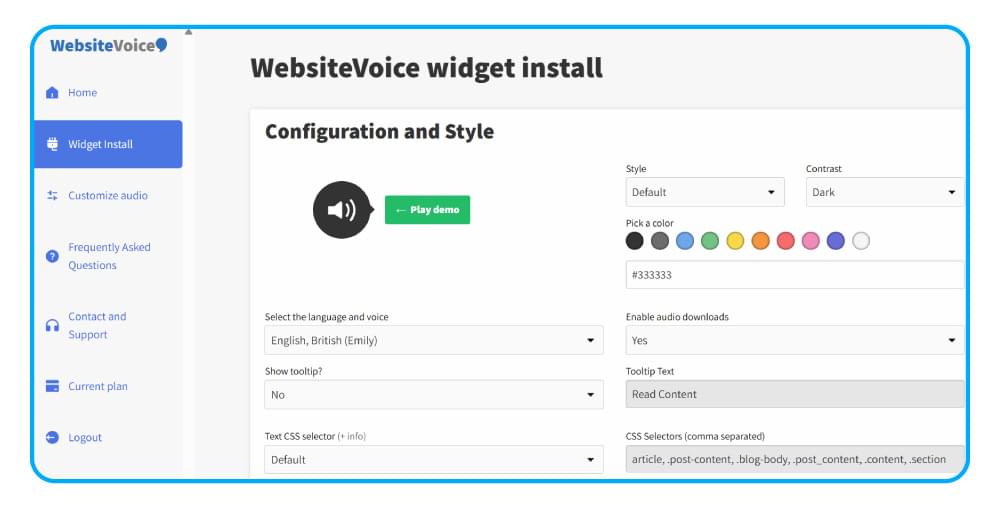
2. In the widget settings, configure the play button:
- Choose the language and voice. WebsiteVoice offers 60+ AI voices in 38 languages and accents.
- Customize the style and color of the play button to match your Weebly theme.
- Add custom intro or outro messages if you like.
3. Scroll down and copy the WebsiteVoice JavaScript code.
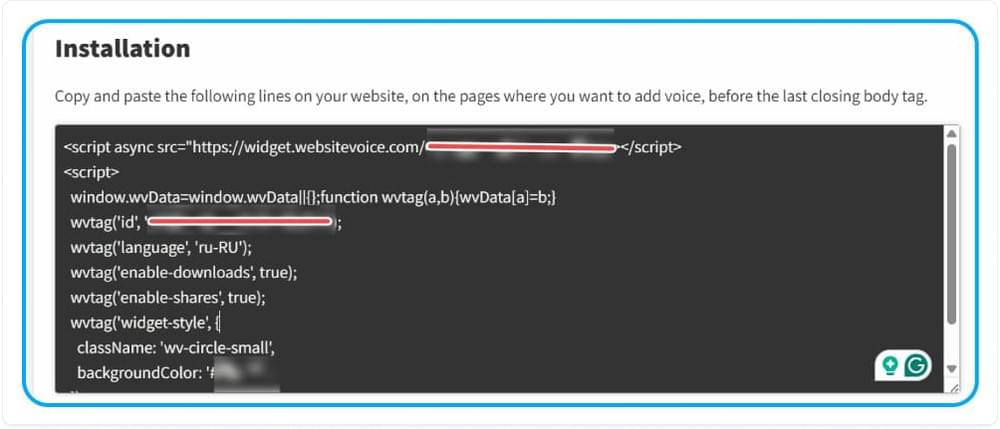
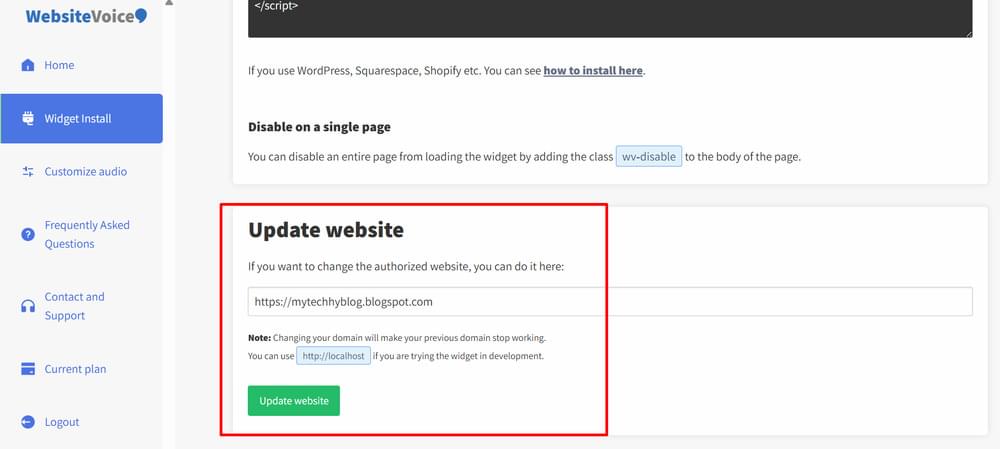
4. Add your Weebly site URL in the Update website section so the WebsiteVoice widget is authorized to run on your site. Use the address visitors see, either your own domain or your weebly.com address.
5. Now log in to Weebly and open your site in the editor.
6. Click the Settings tab at the top of the editor, then open SEO. Weebly lists the Footer and Header Code fields in its Site Settings help guide. If your editor has no Settings tab, look for the site code fields under Website > General Settings in your Weebly dashboard.
7. Paste the WebsiteVoice code into the Footer Code field and save your settings.
8. Click Publish so the change goes live on your site.
9. Visit one of your published pages or blog posts. The WebsiteVoice play button now appears, and visitors can press it to listen to the content.
If you want the play button on one page only, you can use Weebly’s Embed Code element instead. In the editor, drag Embed Code from the Build tab onto the page, click it, choose Edit Custom HTML, paste the WebsiteVoice code, and publish.
Want your Weebly visitors to be able to listen? Start your free WebsiteVoice trial and paste one line of code.
Before you add the widget, your Weebly pages can only be read. After you add it, the play button appears on the page and visitors can listen to your content on desktop or mobile.
Keep Menus and Buttons Out of the Audio
WebsiteVoice skips any element with the wv-ignore class, so you can use it on parts of the page you don’t want read aloud, such as a custom HTML block with navigation links or a signup form. To keep the play button off a page completely, use Bulk Disable in the WebsiteVoice dashboard and enter that page’s URL (a wildcard URL covers several pages at once). Weebly doesn’t let you edit a page’s <body> tag, so the wv-disable class isn’t practical here.
Why Add Text-to-Speech to Your Weebly Website?
- Accessibility: People with low vision, dyslexia or reading difficulties can listen to your pages instead of reading them.
- Better engagement: Visitors can listen to your blog posts while they cook, commute or work, and stay on your site longer.
- More languages: With 38 languages and accents, you can pick a voice that matches the language of your site.
- No plugin or coding skills needed: The setup is one copied script in a Weebly setting.
- Audio analytics: The WebsiteVoice dashboard shows how often visitors press play.
Conclusion
Adding a text-to-speech play button to Weebly only takes a few minutes. Copy the WebsiteVoice script, paste it into Footer Code in your SEO settings, and publish. Your pages and blog posts become easier to access and easier to enjoy.
If you run into any issue while adding WebsiteVoice to your Weebly site, get in touch with our customer support.
FAQs About Adding Text-to-Speech to Weebly
Where Do I Paste the WebsiteVoice Code in Weebly?
Paste it into the Footer Code field under Settings > SEO in the Weebly editor, then publish your site. Footer code is added right before the closing </body> tag on every page.
Will the Play Button Work on My Weebly Blog?
Yes. Code in the site-wide Footer Code field loads on your blog pages too, so the play button shows on your blog posts as well as your other pages.
Can I Add the Play Button to Just One Page?
Yes. Use the Embed Code element on that page and paste the WebsiteVoice code into it with Edit Custom HTML.
Is There a Weebly Accessibility Widget or Plugin?
WebsiteVoice works as a text-to-speech accessibility widget for Weebly. It isn’t an app you install from the Weebly App Center; you add it with one script in your Footer Code.
Do I Need Coding Skills?
No. You only copy the code from your WebsiteVoice dashboard and paste it into one Weebly setting.
Related: Getting Started with WebsiteVoice: Add TTS to Your Website



Improve accessibility and drive user engagement with WebsiteVoice text-to-speech tool