text to speech tutorials
How to Reduce Blog Bounce Rate: 9 Fixes and an Audio Test
A high bounce rate on a blog usually means one of two things: readers did not find what the headline promised, or they found it and had no reason to stay. The first is a content and search problem. The second is about the page itself: how fast it loads, how easy it is to read, and what it offers the reader next.
This guide explains what bounce rate means in Google Analytics 4, which numbers are normal for a blog, nine fixes that move it, and how to test one of them, a listen button, with a simple before-and-after comparison on your own posts.
What Bounce Rate Means in GA4
In Google Analytics 4, bounce rate is the share of sessions that were not engaged. Google counts a session as engaged when it lasts longer than 10 seconds, includes a key event, or includes at least two page or screen views. Bounce rate is the opposite of engagement rate, so the two always add up to 100%. Google’s help page on engagement rate and bounce rate has the full definition.
This is different from the old Universal Analytics bounce rate, which counted any single-page visit as a bounce, even if the reader spent ten minutes on the article. Under GA4, a visitor who reads one post for a minute and leaves is not a bounce. A visitor who leaves within ten seconds is.
That change matters for blogs. Most blog visits are single-page visits from search, and that is fine. The number to work on is the share of people who give up in the first few seconds.
What Is a Good Bounce Rate for a Blog?
There is no single target. Bounce rate depends on where the traffic comes from and what the page is for.
- Search traffic to how-to posts often bounces more than returning readers, because some searchers only needed one fact.
- Social and referral traffic tends to bounce more, because the visitor did not choose the topic as deliberately.
- Newsletter traffic usually bounces least, because those readers already know and like your writing.
Compare a post with your own other posts and with its own history, not with an industry average. In GA4, go to Reports > Engagement > Pages and screens and add the Bounce rate or Engagement rate metric. Sort by views and look for posts with plenty of traffic and an unusually high bounce rate. Those are the posts worth fixing first.
Why Readers Leave a Blog Post in the First Few Seconds
Most fast exits come from a short list of causes:
- The page loads slowly, so the reader leaves before the text appears.
- The title or search snippet promised something the opening does not deliver.
- The first screen is a wall of pop-ups, ads or a large image, with no text in sight.
- The text is hard to read: small type, long paragraphs, low contrast.
- The reader is on a phone, busy, or not in a position to read a long article right now.
The fixes below address each of these.
9 Ways to Reduce Bounce Rate on a Blog
1. Make the Page Load Fast
Speed is the first filter. If the article takes several seconds to appear on a phone, many visitors leave before reading a word. Check your posts against Google’s Core Web Vitals, especially Largest Contentful Paint. Compress images, lazy-load anything below the first screen, and remove scripts you no longer use.
2. Match the Opening to the Search Intent
Read your title and meta description, then read your first paragraph. Does the opening confirm, straight away, that the reader is in the right place? If someone searched “how to reduce bounce rate” and the post starts with the history of web analytics, they will leave. Put the answer or the promise of the answer in the first two or three sentences.
3. Clear the First Screen
On a phone, the first screen should show the headline and the start of the article. Delay newsletter pop-ups until the reader has scrolled or spent some time on the page, keep cookie banners small, and avoid a hero image so tall that the text starts below the fold.
4. Write for Scanning
Readers decide in seconds whether a post is worth their time, and they decide by scanning. Use descriptive subheadings, short paragraphs, numbered steps and bullet lists. Research from Nielsen Norman Group on how long users stay on web pages found that the first 10 seconds of a visit are critical for the decision to stay or leave, and that pages which communicate their value within those seconds can hold attention for much longer.
5. Improve Readability
Use a comfortable font size (at least 16 px on mobile), enough line spacing, and strong contrast between text and background. Plain words and short sentences help everyone, including second-language readers. Our guide to content readability covers this in more detail.
6. Offer a Way to Listen
Some visitors land on a long post at a moment when they cannot read it: on a commute, while cooking, or with tired eyes at the end of the day. A listen to this article button at the top of the post gives them another option besides leaving. It also helps readers with low vision, dyslexia or other reading difficulties follow the whole article.
A text-to-speech widget such as WebsiteVoice adds that button to every post automatically, with no recording. The steps are further down this page.
7. Link to the Next Useful Post
A reader who finishes a post and finds nothing to click next will leave, even if they were happy. Add two or three relevant internal links inside the body, where they help, and a short related-reading list at the end. Link to the next step, not just to similar topics.
8. Make Calls to Action Specific
“Read more” and “click here” give the reader no reason to click. A specific next step, such as “See the five-minute setup” or “Download the checklist”, tells them what they get. Use one clear call to action per section at most.
9. Fix Posts That Attract the Wrong Visitors
Sometimes a post ranks for a query it does not really answer. Check the search queries for the page in Google Search Console. If most of the traffic comes from a query the post does not cover, either add a section that answers it or rewrite the title so it attracts the people the post is written for.
How to Test a Listen Button on Your Own Blog
Rather than guess, run a small test. You need GA4 and about a month.
- Pick five to ten posts with steady traffic, preferably long how-to or opinion pieces.
- Note their engagement rate, bounce rate and average engagement time in GA4 for the previous four weeks.
- Add the listen button to your blog, using the steps below.
- Wait four weeks without making other changes to those posts.
- Compare the same metrics for the same posts over the new four weeks, and check the plays per post in the WebsiteVoice dashboard.
Keep an eye on seasonality and on changes in traffic sources, which can move the numbers on their own. If the test posts get regular plays and their engagement improves, keep the button and give it a more visible position on your most-read posts.
How to Add a Listen Button with WebsiteVoice
The setup takes about five minutes and needs no developer.
Step 1: Create a WebsiteVoice Account
Go to websitevoice.com and start the free 14-day trial. No credit card is needed.
Step 2: Choose a Voice and Style the Play Button
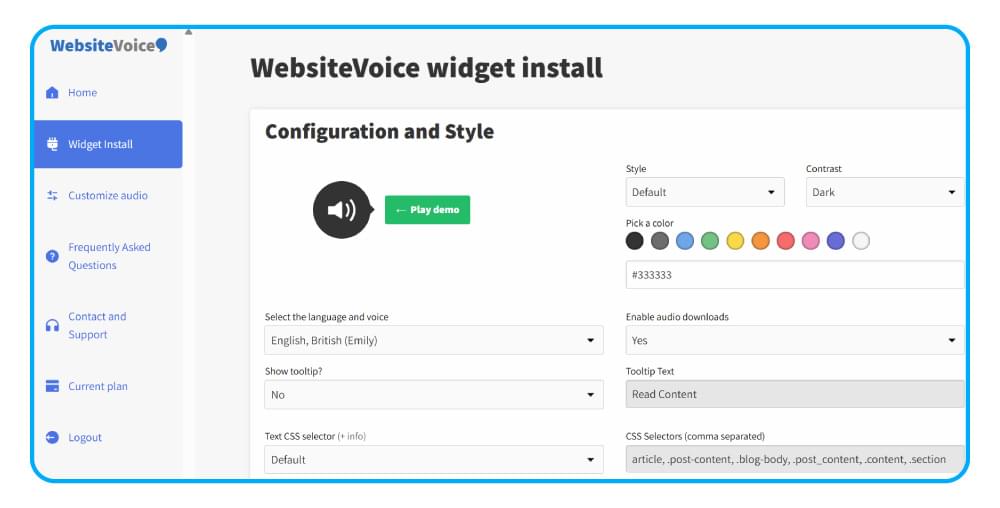
Open the Widget Install section of the dashboard. Choose a language and voice, then set the button colour to match your blog. WebsiteVoice has 60+ AI voices in 38 languages and accents, and you can listen to each one before choosing.
Step 3: Paste the Code into Your Blog
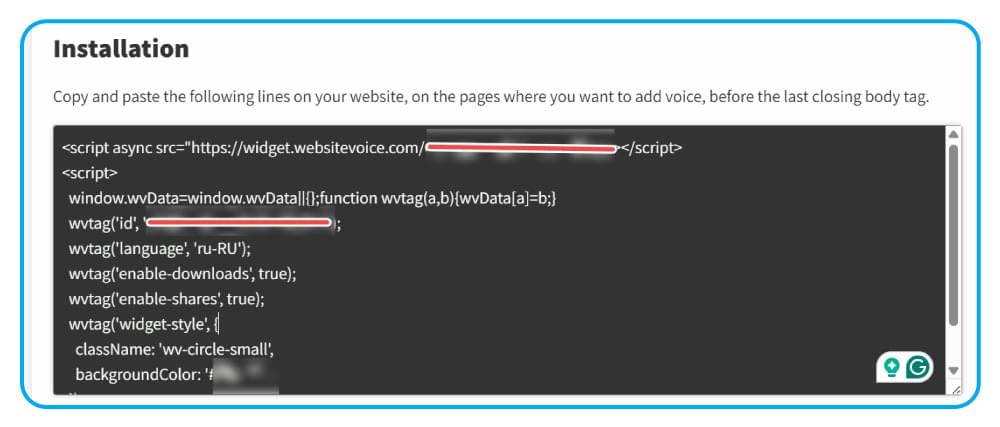
Copy the installation code from the Installation section and paste it just before the closing </body> tag of your blog template, so it loads on every post.
On WordPress, install the official WebsiteVoice WordPress plugin and paste the same code into its settings. A checkbox lets you show the player on posts only.
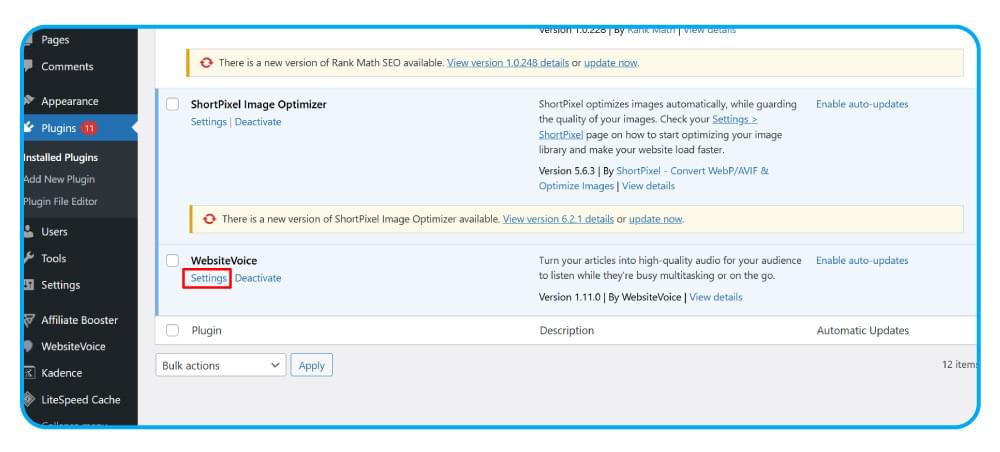
There are also step-by-step guides for WordPress, Wix, Squarespace and Blogger.
Step 4: Authorize Your Domain
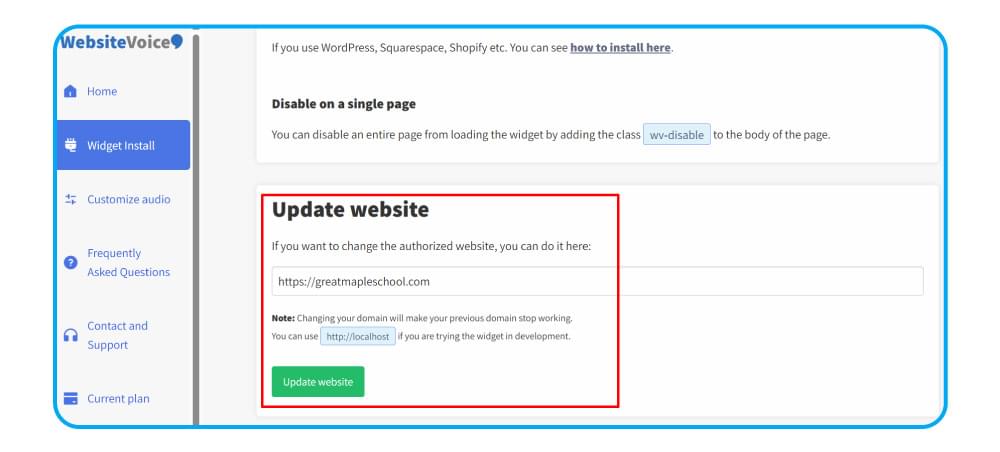
In the dashboard, add your blog’s domain under Update Website so WebsiteVoice can show the player on it.
Step 5: Listen to a Post and Tidy Up
Open a post and press play. If the voice reads the menu, sidebar or newsletter box, add the wv-ignore class to those elements. If the player does not appear, set the custom text CSS selector in the widget settings to the element that holds your post text, for example .entry-content or .post-body.

Step 6: Check Plays Alongside GA4
After a week or two, open the Analytics section of the WebsiteVoice dashboard to see daily plays and the posts people listen to most. Put those next to the GA4 numbers from your test.
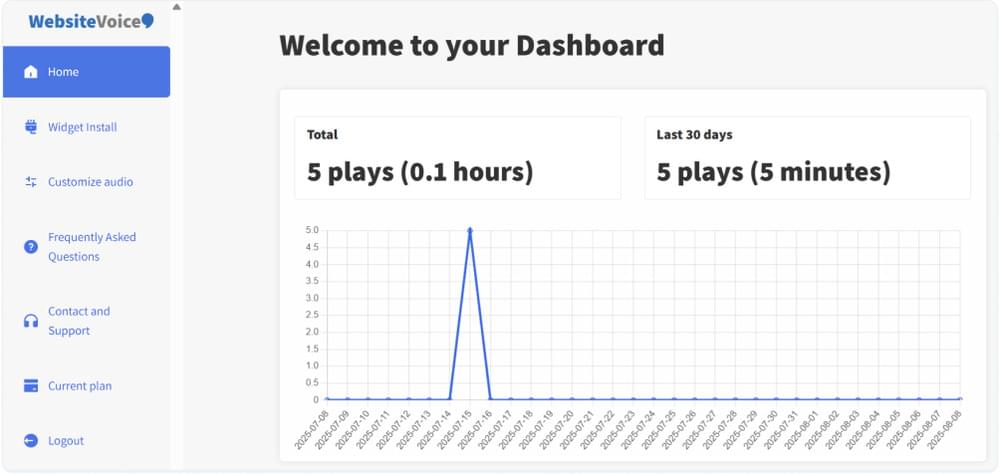
If a post gets plenty of plays, place the button where readers see it before they start scrolling. If plays stay low after a month, try a different voice or a higher button position before you judge the result.
Conclusion
Reducing bounce rate on a blog starts with the basics: a fast page, an opening that matches the search, a clear first screen and text that is easy to scan. After that, give readers more ways to stay, with useful internal links, specific calls to action and a way to listen when reading is not convenient.
Measure each change against your own posts in GA4, not against an industry average. To test audio, start the free 14-day trial, add the listen button to a handful of posts and compare their engagement after four weeks.
FAQs About Reducing Bounce Rate on a Blog
What Is Bounce Rate in GA4?
It is the percentage of sessions that were not engaged. A session is engaged if it lasts longer than 10 seconds, has a key event, or has two or more page views. Bounce rate equals 100% minus engagement rate.
Is a High Bounce Rate Bad for a Blog?
Not always. A reader who finds the answer quickly and leaves happy may still count as a bounce if they leave within ten seconds. Look at bounce rate together with engagement time and with the search queries that bring visitors to the post.
Does Bounce Rate Affect SEO?
Google has not said that it uses GA4 bounce rate as a ranking factor. A high bounce rate is still a useful sign that a page may not be meeting the needs of the people who land on it, and fixing that tends to help both readers and search performance.
Does Adding Audio Reduce Bounce Rate?
It can, for readers who would otherwise leave because they cannot or do not want to read at that moment. Results vary by audience, so run the before-and-after test above on your own posts.
How Long Does It Take to Add a Listen Button to a Blog?
About five minutes. You paste one code snippet into your blog template, or install the WordPress plugin, and every post gets a play button automatically.
Related Reading
20 Proven Techniques to Boost Blog Engagement
13 Tips to Optimize Content Readability for More Conversions



Improve accessibility and drive user engagement with WebsiteVoice text-to-speech tool