text to speech tutorials
How to Add a Text-to-Speech Play Button to Duda
Duda is the website builder many agencies use to build and manage sites for their clients. Every Duda site has a settings field for code that loads on all of its pages, so you can give a client’s site a play button that reads the content aloud with one script and no changes to the design.
WebsiteVoice is a text-to-speech widget that turns the written content on a website into audio. Once the WebsiteVoice script is on a Duda site, a play button appears on its pages and visitors can listen instead of read.
In this guide, we’ll show you how to add the WebsiteVoice text-to-speech play button to a Duda site, and how to roll it out across the client sites you manage.
What You Need Before You Start
- A Duda plan that includes custom code. Duda’s help center lists custom code as available on the Team plan and higher. Duda’s 14-day free trial includes the features of its White Label plan, so you can also test the setup during a Duda trial.
- Editor access to the site. You add the script in the site’s settings, so you need to be the account owner, a team member or a client with permission to edit the site.
- A WebsiteVoice account for the site. Each WebsiteVoice account is authorized for one website address. If you manage several client sites, set up one account per site. You can start a free 14-day trial with no credit card.
Step-by-Step Guide to Add a Text-to-Speech Play Button to Duda
Duda gives you a few places for custom code: the site-wide header settings, the header settings of a single page, Developer Mode and the HTML widget. Duda’s guide to custom code recommends putting code that isn’t visible on the page in the header settings. The site-wide Body End HTML field is the right place for the WebsiteVoice script, because Duda adds it just before the closing </body> tag on every page of the site. That matches the WebsiteVoice installation note, which asks for the code before the last closing body tag.
Follow these steps:
1. Open WebsiteVoice’s dashboard in a new tab. If you don’t have an account for this site yet, you can start your free 14-day trial. No credit card is required.
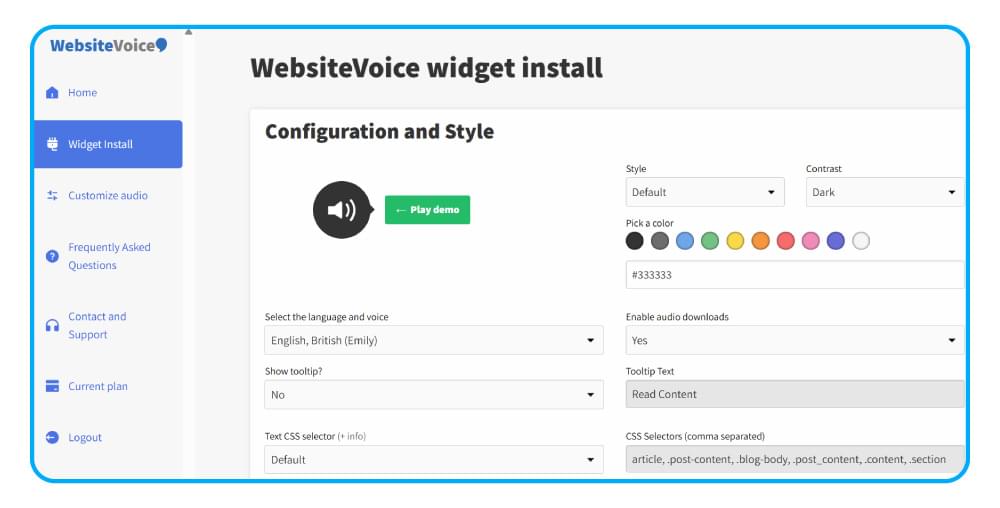
2. In the widget settings, set up the play button for your client’s site:
- Choose the language and voice. WebsiteVoice offers 60+ AI voices in 38 languages and accents.
- Customize the style and color of the play button so it matches the site’s design.
- On the Professional plan, you can also add a custom intro or outro, such as the business name before each page.
3. Scroll down and copy the WebsiteVoice JavaScript code.
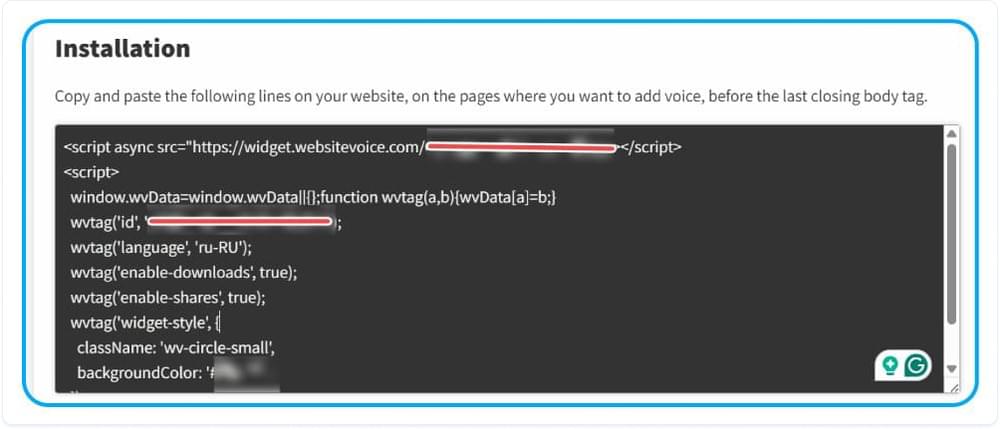
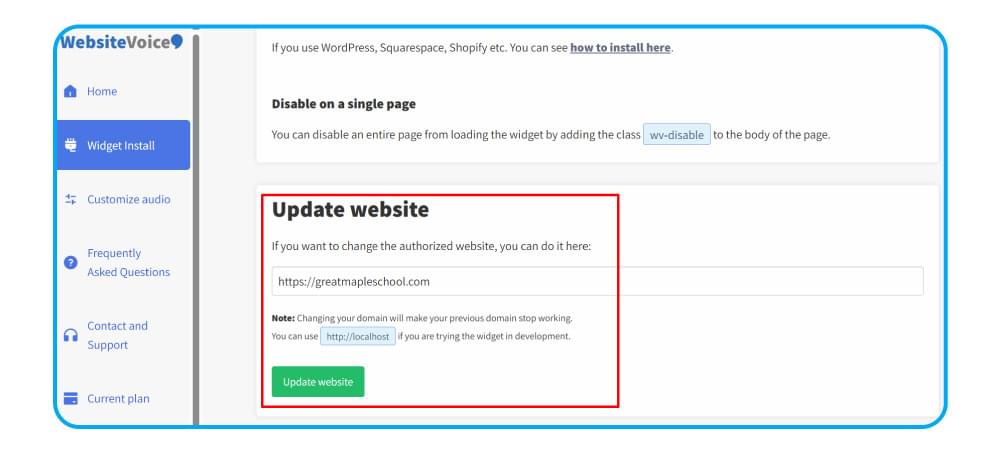
4. Add the site’s address in the Update website section so the WebsiteVoice widget is authorized to run on it. Use the domain the client’s visitors see, which is usually the client’s own domain.
5. Now log in to Duda and open the client’s site in the editor.
6. In the side panel, click More, then click Settings.
7. Click Header HTML.
8. Paste the WebsiteVoice code into the Body End HTML field. Don’t use the Head HTML field above it for this script.
9. Click Save.
10. Republish the site so the change goes live. Code in the settings only reaches visitors after you publish.
11. Open one of the site’s published pages on its live domain. The WebsiteVoice play button now appears, and visitors can click it to listen to the content.

If you only want the play button on one page, open Pages in the side panel, click the settings icon on that page, click SEO, scroll down to Header HTML, paste the code there and save. You can also drag an HTML widget onto a page (in the side panel, click Add, then Elements, and search for HTML) and paste the code into it. Duda’s article on the HTML widget suggests placing it in a column or container of its own, so it is easy to remove later.
Building Duda sites for clients? Start your free 14-day trial and add a listen button with one script.
How to Roll It Out Across Client Sites
The setup is the same on every Duda site, so it is easy to turn into a standard step in your build checklist:
- One WebsiteVoice account per client site. Each account authorizes one website address. Changing that address makes the widget stop working on the old one, so don’t reuse a single account across clients.
- Add the script yourself, then republish. Clients don’t need code access for the play button to work. Once the script is in Body End HTML, every page they add later gets the play button too.
- Give clients only the permissions they need. Duda sets client permissions per site, as explained in its guide to managing clients. The Editor permission covers site settings, and the Dev Mode permission covers the site’s HTML and CSS. If a client only edits text and blog posts, they don’t need either of these to keep the play button running.
- Check consent settings. If the site uses a cookie consent app, Duda recommends placing scripts in the body end rather than the head, which is where the WebsiteVoice script already goes.
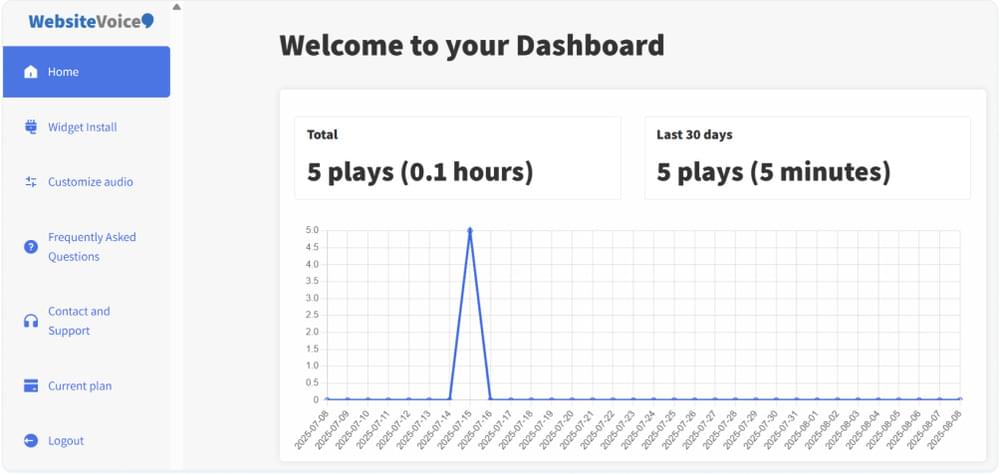
- Use the dashboard for each site. Each client’s WebsiteVoice dashboard shows which pages people listen to, which is useful for monthly client reports.
Keep Menus and Forms Out of the Audio
Client sites usually have navigation, contact forms and footers that don’t need to be read aloud. WebsiteVoice skips any element with the wv-ignore class. In Duda’s Editor 2.0 or flex mode, select a section or column, choose Add CSS Class Name from its menu and type wv-ignore. Duda notes that you need Developer Mode access to use CSS class names.
To keep the play button off a page completely, you don’t need any code. In the WebsiteVoice widget settings, add that page’s URL to the box for URLs where the widget should be disabled (one URL per line). A wildcard URL, such as https://clientsite.com/blog/tag/*, covers several pages at once.
If the play button reads the wrong part of a page, check the Text CSS selector in the WebsiteVoice widget settings. It tells the widget which part of the page holds the main content.
Why Add Text-to-Speech to the Duda Sites You Build?
- Accessibility: Visitors with low vision, dyslexia or reading difficulties can listen to the site instead of struggling through the text.
- A feature you can offer every client: The setup takes a few minutes per site, so you can add it to new builds and existing sites alike.
- Multilingual reach: With 38 languages and accents available, you can match the voice to the language of each client’s site.
- No design changes: The whole setup is one script in a Duda setting. There is no layout to rebuild.
- Audio analytics: The WebsiteVoice dashboard shows which pages and posts people listen to.
Conclusion
Adding a text-to-speech play button to a Duda site takes a few minutes. Copy the WebsiteVoice script, paste it into Settings > Header HTML > Body End HTML, save and republish, and every page on the site gets a listen button. Repeat the same steps for each client site, with one WebsiteVoice account per site, and you have an accessibility feature you can include in every build.
If you have any trouble adding WebsiteVoice to Duda, get in touch with our customer support.
FAQs About Adding Text-to-Speech to Duda
Where Do I Paste the WebsiteVoice Code in Duda?
In the editor, click More > Settings > Header HTML and paste the code into the Body End HTML field. Save, then republish the site. Duda adds this code just before the closing </body> tag on every page.
Which Duda Plans Let Me Add Custom Code?
Duda’s help center lists custom code as available on the Team plan and higher. Duda’s 14-day free trial includes White Label plan features, so you can set it up during a trial too. If you don’t see the Header HTML settings, check your plan or your permissions on that site.
Can I Use One WebsiteVoice Account for Several Client Sites?
No. Each WebsiteVoice account is authorized for one website address, so set up a separate account for each client site.
Can I Add the Play Button to Only One Page?
Yes. Paste the code into that page’s Header HTML field under Pages > settings icon > SEO, or add an HTML widget to the page and paste the code into it.
Why Don’t I See the Play Button Yet?
Check that you saved the code and republished the site, and that you are viewing the live site on the address you added in the WebsiteVoice dashboard. The editor and preview run on a different address, so the play button may not appear there. If a script still doesn’t run, Duda’s custom code guide explains how to check whether its page speed optimization is the cause.
Does WebsiteVoice Replace Duda’s Own Accessibility Features?
No. WebsiteVoice adds an audio version of the content. Duda’s article on accessibility at Duda explains its built-in features, such as heading tags and alt text, and notes that the site owner is responsible for making the site accessible. The play button works alongside those basics.
Related: Getting Started with WebsiteVoice: Add TTS to Your Website



Improve accessibility and drive user engagement with WebsiteVoice text-to-speech tool