text to speech tutorials
Text to Speech for Nonprofits: A Website Accessibility Guide
Nonprofit and association websites carry a lot of important writing: impact stories, program guides, policy updates, annual reports, member newsletters and resources for the people you serve. Much of that reading is done by people who find long text on a screen hard going, or who simply have no time to sit and read.
This guide is for the people who run those sites: communications managers, development teams, volunteer editors and association staff. It covers what a listen button does for a nonprofit website, where it helps with accessibility and where it doesn’t, and how to set it up with WebsiteVoice in about five minutes, without a developer.
What Text to Speech Does on a Nonprofit Website
Text to speech (TTS) turns the written text of a page into spoken audio. On your website it appears as a small play button at the top of a post or page. A visitor taps it and hears the article, guide or update read aloud by a natural-sounding AI voice, while the page stays open.
Nothing has to be recorded. Your team keeps writing and publishing the way it does now, and every new post gets an audio version the first time someone presses play. For a small communications team, that is the difference between audio on every post and audio on none.
Why a Listen Button Fits Nonprofit Websites
Nonprofits write for wide audiences, and many of the people they want to reach are the ones who struggle most with long pages of text.
- Your audience includes people with disabilities. According to the CDC, more than 1 in 4 U.S. adults have some type of disability, and the most common include disabilities that affect cognition and vision. For a health charity, a disability organization or a social services provider, that share is often higher.
- Many readers are reading in a second language. Refugee services, community groups and international NGOs often serve people who understand spoken language more easily than written text.
- Supporters read on the move. Donors, members and volunteers usually open your newsletter or latest story on a phone, between other things. A play button lets them listen on a walk or a commute instead of saving it for later and forgetting it.
- Long documents get skipped. Annual reports, research summaries and policy briefs are often the most important pages on the site and the least read. Audio gives people another way in.
- Inclusion is part of the mission. Making your own website easier to use shows supporters and partners that you practice what you ask of others.
What a Listen Button Does and Doesn’t Do for Accessibility
It helps to be precise here, because accessibility claims matter for nonprofits.
A listen button helps visitors with low vision, dyslexia and other reading difficulties, people with reading fatigue and people reading in a second language. The W3C’s guide to how people with disabilities use the web describes the barriers these visitors meet online, and audio removes one of them for long text.
A listen button does not make a website accessible on its own. Blind visitors usually rely on their own screen reader, which reads the whole interface, not just the article. Your site still needs good color contrast, alt text on images, clear headings, labeled forms and keyboard navigation. A player sits on top of that work. It does not replace it, and it does not make a site compliant with any accessibility standard.
If you are weighing a read-aloud player against an all-in-one accessibility toolbar, this comparison of an accessibility widget and a text-to-speech player explains what each one does.
What to Check Before You Add Text to Speech
Nonprofit sites have a few needs of their own. Run through these before you choose a tool.
1. Audio Should Appear on Every Post Without Extra Work
If someone has to produce audio by hand, it will stop after the first busy month. Look for a widget that finds the main text on each page and creates the audio automatically. WebsiteVoice does this with Automatic Content Recognition, and if your theme is unusual you can point it at the post body with a CSS selector.
2. It Should Skip Donate Buttons, Menus and Sign-Up Forms
Menus, donation banners, newsletter sign-up boxes, cookie notices and event lists should not be read aloud in the middle of a story. Add the wv-ignore class to any of those elements and WebsiteVoice skips them.
3. It Should Speak the Languages Your Community Reads
WebsiteVoice offers 60+ AI voices in 38 languages and accents, including Spanish (Spain, Mexico and US), Portuguese (Portugal and Brazil), French, German, Italian, Greek, Arabic, Hindi, Korean and Vietnamese, plus English variants for the US, UK, Australia and India. If you publish in more than one language, test a page in each before you launch.
4. The Cost Should Fit a Tight Budget
Enterprise audio platforms are priced for national publishers and sold through sales calls. A flat monthly plan is more realistic for most nonprofits. WebsiteVoice starts at $9 a month, with a free 14-day trial and no credit card required.
5. Staff and Volunteers Should Be Able to Manage It
Communications roles at small nonprofits change hands often. The setup should be one snippet or a plugin, with settings in a simple dashboard, so whoever takes over next year can manage it without help.
How to Add Text to Speech to a Nonprofit Website with WebsiteVoice
The setup takes about five minutes. You need access to your website’s theme or template, or to the plugin area of your CMS.
Step 1: Create a WebsiteVoice Account
Go to websitevoice.com and start the free 14-day trial. No credit card is needed.
Step 2: Choose a Voice and Style the Play Button
Open the Widget Install section of the dashboard. Choose the language and voice for your site, then set the play button color to match your organization’s branding. You can listen to each voice before you choose.
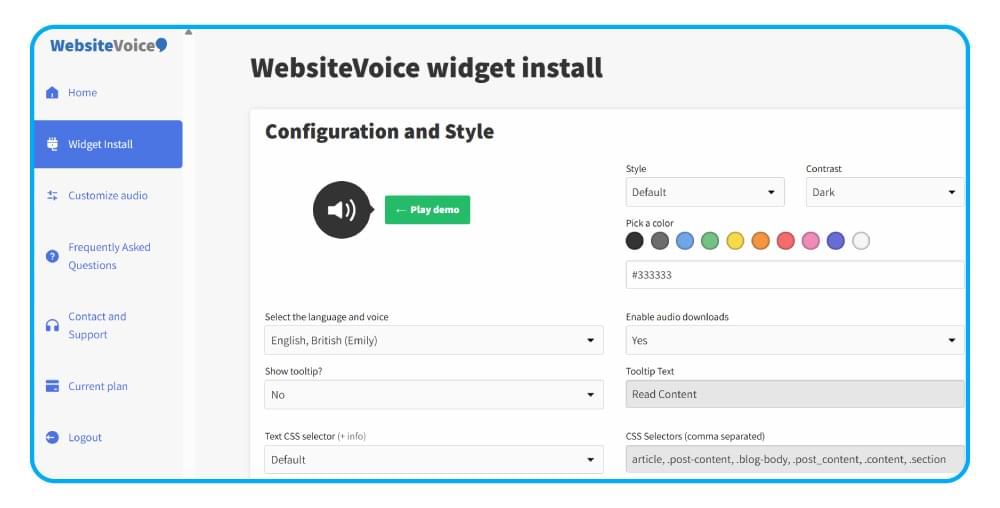
For impact stories and guides, a warm, steady voice usually works best. Try two or three voices on a real post from your site before you decide.
Step 3: Paste the Code into Your Website
Copy the installation code and paste it just before the closing </body> tag of your site template, so it loads on every page.
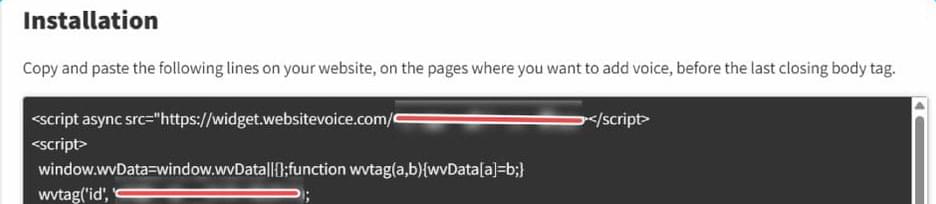
If your site runs on WordPress, install the official WebsiteVoice WordPress plugin and paste the same code into its settings. There are also step-by-step guides for WordPress, Wix and Squarespace, the platforms many nonprofit sites are built on.
Step 4: Authorize Your Domain
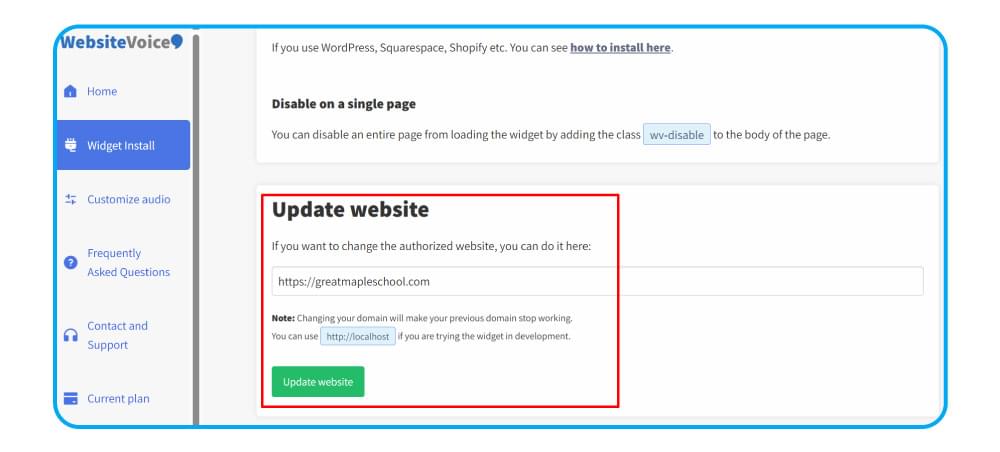
In the dashboard, add your website’s domain under Update Website so WebsiteVoice can show the player on it. Each WebsiteVoice account is authorized for one website, so a federation with separate chapter sites needs an account for each site.
Step 5: Listen to a Post and Tidy Up
Open a recent story and press play. If the voice reads the menu, the donate banner or the sign-up box, add the wv-ignore class to those elements in your theme. If the player does not appear, set the custom text CSS selector in the widget settings to the element that holds your post text (for example .entry-content or .post-body).
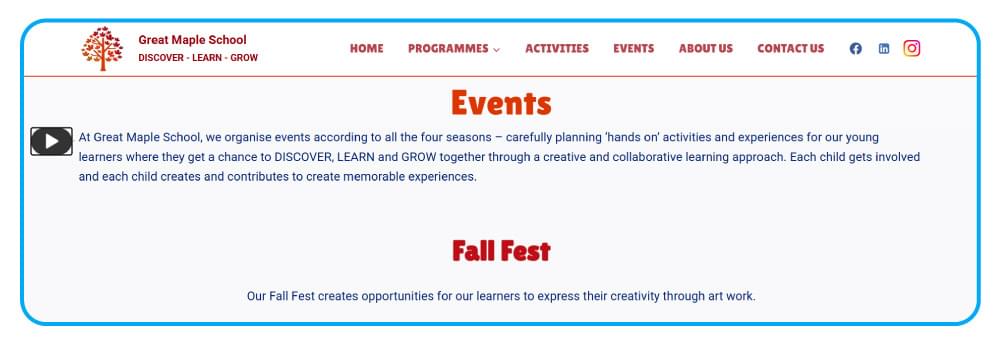
That is the whole setup. Every post you publish from now on gets a play button automatically.
Which Pages to Give Audio First
You don’t need audio on every page. Start where people read the most text.
- Impact stories and case studies. These are the pages you most want supporters to finish, and they read well aloud.
- Guides and resources for the people you serve. Benefit explainers, health information, how-to guides and FAQs are often read by the visitors who benefit most from listening.
- Annual reports and research summaries published as web pages. Audio gives busy board members, partners and funders an easy way through them. If your reports are PDFs only, publish a web summary page and give that page audio.
- Newsletters, member updates and blog posts. Regular readers come back each month, and the play button becomes a habit.
Keep the player off pages that are mostly forms or lists, such as donation pages, event calendars and contact pages.
Writing Posts That Sound Good Read Aloud
A few small habits make posts sound better when they are spoken.
- Spell out acronyms the first time they appear. Nonprofit writing is full of program names, funders and agencies. Write the full name once, then the short form.
- Write numbers the way you want them read. Figures like “2.3M” can come out awkwardly. “2.3 million” usually reads more naturally. Listen once and adjust.
- Keep headings short. The voice reads headings too, and short ones help listeners follow the structure.
- Use the intro and outro settings on the Professional plan to add a short spoken welcome or closing line, such as your organization’s name.
Seeing Whether People Listen
After a week or two, open the Analytics section of the WebsiteVoice dashboard. It shows daily plays and total listening time.
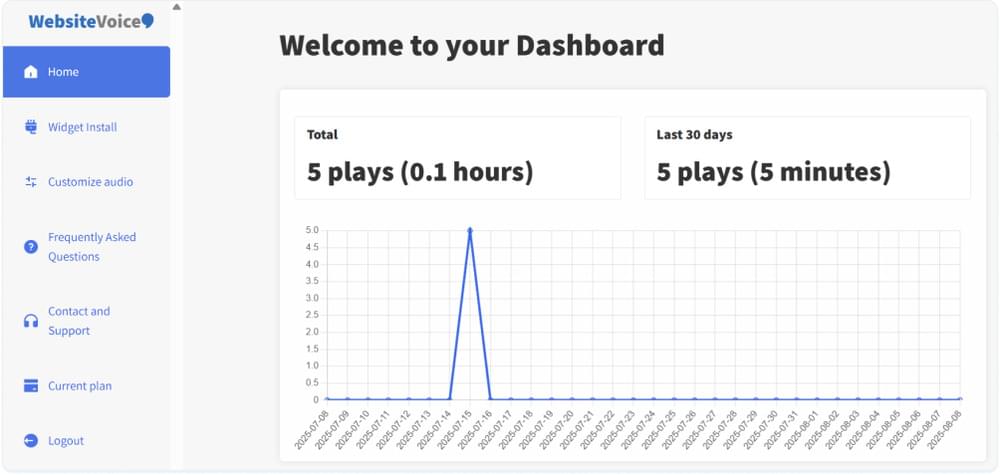
If plays are steady, mention the listen button in your newsletter and on social media so more supporters know it is there. If plays stay low after a month, try moving the button higher on the page or choosing a different voice.
Choosing a Plan for a Nonprofit Website
WebsiteVoice starts with a free 14-day trial, no credit card required. Paid plans are Starter at $9 per month, Premium at $29 per month and Professional at $49 per month. Premium removes the WebsiteVoice watermark, and Professional adds custom intro and outro text, MP3 downloads and listener speed control. See the pricing page for yearly prices and plan details.
Conclusion
A listen button is a simple, low-cost way to make a nonprofit website easier to use for people with low vision or reading difficulties, for people reading in a second language, and for supporters who would rather listen than read. It works alongside the rest of your accessibility work rather than replacing it, and every post gets audio automatically once it is set up.
Start the free 14-day trial, add the play button to your stories and guides, and check the play statistics after a couple of weeks to see how your audience uses it.
FAQs About Text to Speech for Nonprofit Websites
Does a Listen Button Make a Nonprofit Website Accessible?
No, not on its own. It helps visitors with low vision, dyslexia and reading difficulties, but your site still needs good contrast, alt text, clear headings, labeled forms and keyboard navigation. A player adds to that work and does not make a site compliant with any accessibility standard.
Do I Need a Developer to Add Text to Speech?
No. The setup is one code snippet in your site template, or the WordPress plugin. Hiding menus and donation banners with wv-ignore needs only basic HTML.
Can Text to Speech Read Our Pages in Other Languages?
Yes. WebsiteVoice has 60+ AI voices in 38 languages and accents, including Spanish, Portuguese, French, Arabic and Hindi. Choose a voice in the language you publish in.
Can We Use One Account for Several Chapter or Program Sites?
Each WebsiteVoice account is authorized for one website. Separate sites on separate domains each need their own account.
Is There a Free Plan?
WebsiteVoice has a free 14-day trial with no credit card required. After the trial, plans start at $9 a month.
Related Reading
Text to Speech for Church and Faith Websites: A Setup Guide
Text to Speech for News Websites: A Guide for Local Publishers



Improve accessibility and drive user engagement with WebsiteVoice text-to-speech tool