
text to speech tutorials
How to Add Russian Text-to-Speech Play Button To Websites?
Russian is among the top ten most-used languages on the internet. There are over 258 million Russian speakers worldwide. So, if you are running a website serving the Russian-speaking audience, you probably already know how important it is to keep visitors engaged. One reliable way to do that is by letting the audience listen to your content instead of reading it.
Adding a Russian text to speech play button can invite a whole new audience to your website. It allows the visitors to consume your content while commuting or multitasking. Moreover, people with visual impairments can access your website content and blog posts more easily. And if you are catering to language learners, hearing proper Russian pronunciation makes your site even more valuable.
In this article, we’ll explore how you can easily add a Russian text to speech to your website within minutes using WebsiteVoice.
What Is Russian Text-to-Speech?
Russian text to speech technology converts written Cyrillic text into spoken audio using AI-generated voices. Traditional Russian TTS voices used to be too robotic. However, the technology has now evolved, which provides you with more natural and conversational Russian speech.
Converting Russian text to speech is often challenging for TTS systems because stress patterns can change word meaning, and it is important to ensure accuracy in soft/hard consonant pairs. Quality Russian TTS systems like WebsiteVoice handles these nuances while maintaining natural rhythm and intonation. WebsiteVoice has two natural-sounding Russian AI voices that you can add to your website in minutes.
Why Add Russian TTS to Your Website?
Here’s why you should consider adding Russian TTS to your websites:
- Higher Accessibility: Adding Russian audio playback makes your content accessible to visitors with visual impairments, dyslexia, or other reading difficulties.
- Supports Mobile-First Content Consumption: Audio allows Russian mobile users to consume your articles or blog posts while on the go.
- Supports Russian Language Learners: If you publish educational content on your site, you should definitely add the TTS widget to help language learners hear how different words should sound.
- Boost Engagement: Visitors who listen to content are likely to stay on your website longer as they don’t have to read through huge chunks of content. It is useful to boost engagement and reduce bounce rate.
WebsiteVoice Russian Text to Speech AI Voices
WebsiteVoice offers 2 natural-sounding Russian AI voices. It gives you options to match your brand’s tone and your audience’s preferences.
- Russian (Dymitro): Male voice with a clear and standard Russian accent. It is perfect for news websites, business content, and formal articles.
- Russian (Tatiana): Female voice with a warm and approachable tone. This voice works well for lifestyle blogs, educational content, e-commerce product descriptions, and websites targeting a broader consumer audience.
Both of these Russian TTS voices handle Cyrillic script accurately, so they can easily pronounce Russian words with proper stress and enunciation. The best part is that you can preview each voice in your WebsiteVoice dashboard before installing it in your website.
How to Install Russian Text to Speech Play Button on Your Website?
Here’s how you can add a Russian TTS play button to your website with WebsiteVoice.
Step 1: Create an Account on WebsiteVoice
Open the WebsiteVoice site and start your free trial. You can start with a 14-day free trial to test all features, with no credit card required. Just enter your email, create a password, and you’re in.
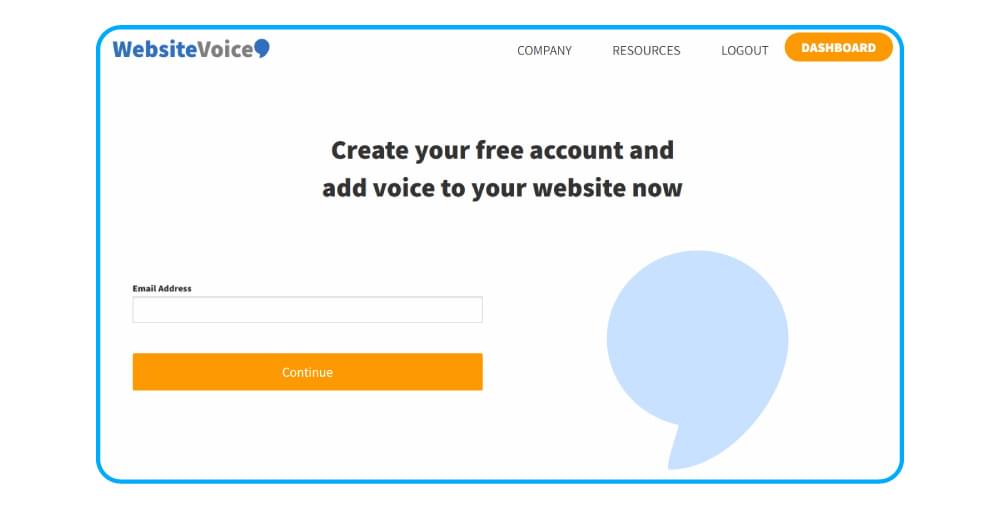
Step 2: Select Your Russian Voice and Customize the Widget
In your WebsiteVoice dashboard, open the voice selection settings. You can choose between Dymitro and Tatiana Russian voices, based on your content type and audience. Listen to the sample audio for each voice to ensure it fits your brand’s personality.
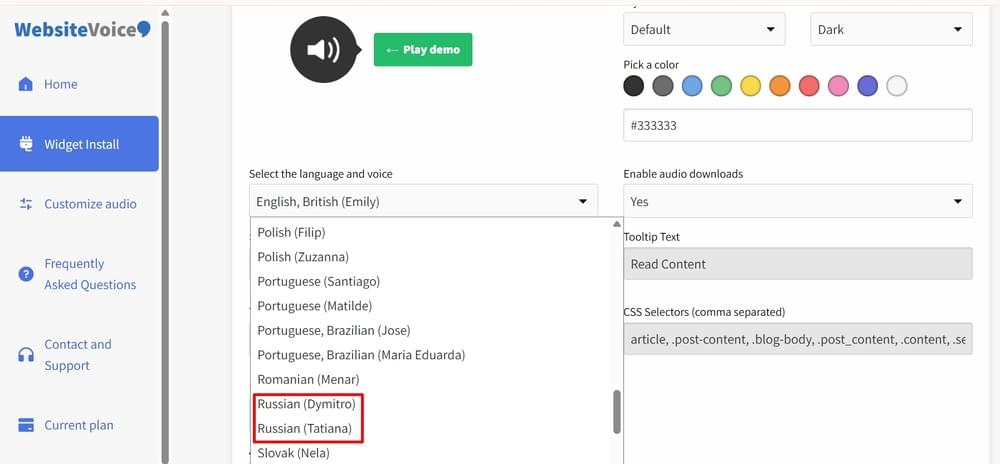
In addition to voice selection, you can also customize the text to speech audio player’s appearance. These customization features are useful to match the widget’s color to your website’s design.
Step 3: Install the Code
After configuring the Russian TTS widget settings, go to the Installation section in your dashboard. You’ll find a code snippet. You have to copy this code and paste it into your website’s HTML, just before the closing </body> tag.
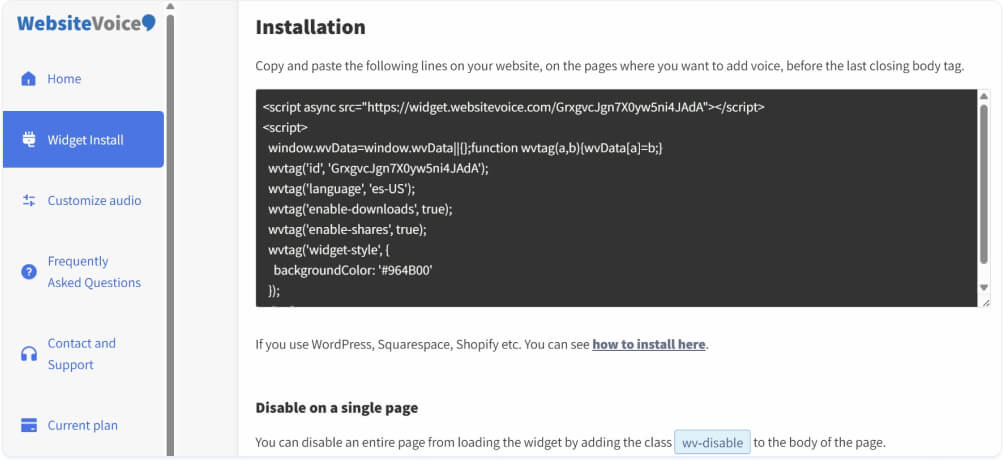
If you are not sure where to find this, open your website’s main HTML file and scroll to the bottom. The </body> tag appears near the end, right before </html>.
Note: If you’re using a CMS platform, you can check out our step-by-step guides for WordPress, Shopify, Wix, Squarespace, Blogger, Joomla, Webflow, Drupal, and Ghost.
Step 4: Authorize Your Website
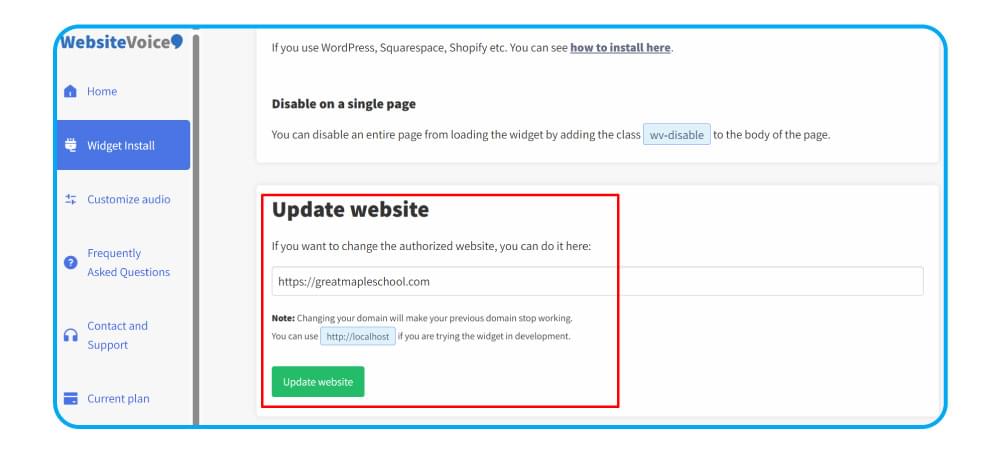
Back in your WebsiteVoice dashboard, you also have to add your domain in the Update Website section. This will authorize the WebsiteVoice text-to-speech widget to work on your site. After providing the authorization, open your Russian website and make sure the play button appears on your Russian content. You can also check the real-time analytics in your dashboard to verify that the widget is tracking plays correctly.
Related: Benefits of Having a Text-to-Speech Tool on Your Website
Conclusion
This entire process of adding Russian text to speech to your website is quick and simple with WebsiteVoice. The two available Russian TTS voices, Dymitro and Tatiana, can cover a range of content types from formal business articles to casual lifestyle blogs. You can complete the installation process within a few minutes, and the customization options let you match the audio player to your brand.
Start with the 14-day free trial to test how your Russian audience responds to audio content. Try WebsiteVoice free and see how adding a play button can change the way visitors experience your Russian-language content.
FAQs About Russian TTS
How Many Russian Voices Does WebsiteVoice Offer?
WebsiteVoice offers 2 natural-sounding Russian AI voices. These Russian TTS voices are: Dymitro (male) and Tatiana (female). You can preview each voice in your dashboard before selecting one that suits your website.
Can I Add Russian Text to Speech to My WordPress Site?
Yes! WebsiteVoice works with all major website platforms, including WordPress, Shopify, Wix, Squarespace, and custom HTML sites. WordPress users can also use the dedicated plugin for easier integration.
Can I Customize How the Russian Audio Player Looks?
Absolutely. You can customize the audio player’s color and overall style to match your website’s design and specific requirements. A variety of customization options are available in the WebsiteVoice dashboard before you install the code.
Can I Track How Many Visitors Listen to My Russian Content?
Yes. WebsiteVoice offers built-in real-time analytics that show the duration of visitors listening to your content.
Can WebsiteVoice Handle Cyrillic Script Correctly?
Yes. Both AI Russian voices available in WebsiteVoice are trained on native Russian content. They can handle Cyrillic characters with maximum accuracy. These Russian TTS voices pronounce the words with proper stress and natural intonation, making the audio sound authentic and relatable to native speakers.