
text to speech tutorials
How to Install Italian Text to Speech Widget On Websites?
If your website is targeting Italian-speaking visitors and you don’t provide an option to listen to the content, you are leaving significant engagement on the table.
Italian readers, just like any other audience, will love the ability to listen to content instead of reading every single word on a screen, especially if you have long-form content on your website. The best part is that adding an Italian text-to-speech (TTS) widget is useful for all kinds of websites, including blogs, educational sites, and commercial sites.
The entire process of adding the Italian TTS play button can be completed within minutes using WebsiteVoice. In this article, we’ll break down exactly how you can set up an Italian text-to-speech widget on your Italian site.
Why Add Italian Text to Speech to Your Website?
More than 85 million people around the world speak Italian. Many countries like San Marino, Italy, and parts of Switzerland has Italian as the official language and there’s also a strong presence of Italians in American, Australia, and several European countries.
Here’s why adding Italian text-to-speech button to your website can be a smart thing to do:
- Not every visitor wants to sit and read. Many users are multitasking, some have visual impairments, and others simply prefer listening. A TTS widget gives all of them a way to engage with your content.
- You can increase the overall engagement with your content as adding audio to your site is an effective way to retain website visitors.
- Personalized blog experience by providing a natural-sounding Italian voice shows your audience that you care about their experience. This ties directly into the benefits of having a text-to-speech tool on your website.
- Website accessibility isn’t optional anymore. Many countries, including EU states like Italy, have digital accessibility regulations.
How to Install the Italian TTS Widget (Step by Step)
Getting the Italian TTS widget up and running on your website is quick and simple. Here’s how to do it.
Step 1: Create Your WebsiteVoice Account
Open the WebsiteVoice and sign up for a free 14-day trial. You don’t require a credit card to sign-up. Just enter your email and create a password.
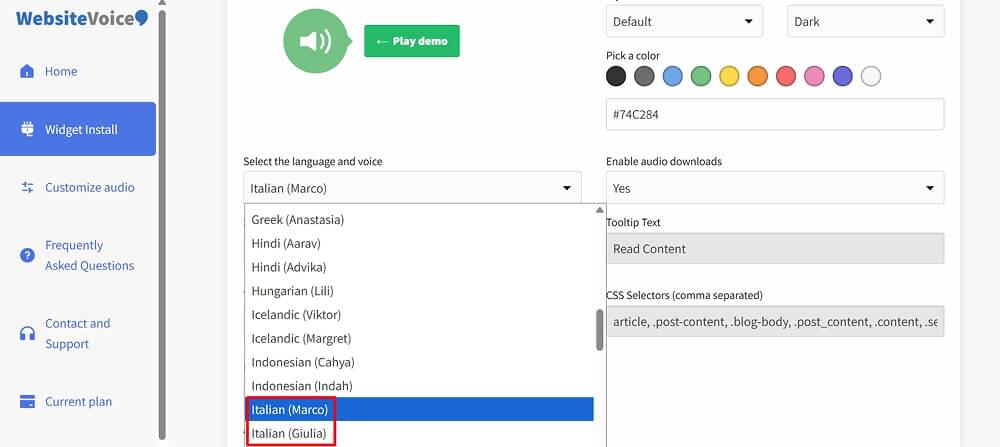
Step 2: Select Italian as Your Language
In the widget settings, select Italian among the languages options. You’ll then see the available voices, such as Marco or Giulia, depending on your preference.
Unlike generic TTS tools that rely on browser-based voices, WebsiteVoice provides dedicated AI voices trained for natural-sounding speech.
Step 3: Customize the Widget Appearance
Before installing, customize how the play button looks on your site. You can adjust the button color, position, and style to match your website’s design. You can also set up custom intro or outro text if you want to add a branded greeting.
Step 4: Copy and Paste the Code Snippet
WebsiteVoice generates a small JavaScript snippet. You can copy it and paste it into your website’s HTML just right before the <body> tag in the footer section. If you’re using a CMS like WordPress, this is even easier (more on that below).
Step 5: Test the Widget
Refresh your Italian website where you have pasted the code and look for the play button. Click it and listen. Make sure the Italian voice sounds right with your content, and check that the widget appears correctly on both desktop and mobile.

Related: Getting Started with WebsiteVoice
Conclusion
The overall setup of adding Italian text-to-speech to your site takes just a few minutes regardless of your platform. So, are you ready to hear how your website sounds in Italian? Start your free 14-day trial with WebsiteVoice and try Marco and Giulia on your site today.