text to speech tutorials
How to Add a French Text-to-Speech Play Button to Websites?
In this guide, you’ll learn how to add a French text to speech (TTS) play button to any website using WebsiteVoice, along with information for which voices are available, and why this simple addition can make a huge difference for your French-speaking audience.
What Is a Text-to-Speech Play Button?
A text-to-speech play button is a small audio widget that sits on your webpage and reads your written content aloud. Visitors click play, and an AI voice reads the page to them in natural-sounding speech.
With TTS, the audio is generated automatically from your existing text. It does not involve any recording studio, no editing software, no manual work on your end. Every time you update your content, the audio updates too.
Related: What Is TTS (Text-to-Speech)?
Why Add French Audio to Your Website?
If your website has French-speaking readers, giving them the option to listen does a few things.
First, it makes your content more accessible. Some visitors have reading difficulties like dyslexia, while others may be non-native French readers who find listening easier than reading. Text-to-speech technology helps people with disabilities engage with content they might otherwise skip.
Second, audio content keeps visitors on your site longer. Someone listening to a 2,000-word article will spend significantly more time on the page than someone who skims it. That’s better for engagement, better for SEO, and better for building a loyal audience.
Third, it respects your readers’ time. People multitask. Offering a listen option means your French-speaking visitors can consume your content while doing something else entirely.
If you’re building multilingual content, you should explore multilingual TTS localization to understand how to scale audio across multiple languages.
French AI Voices Available in WebsiteVoice
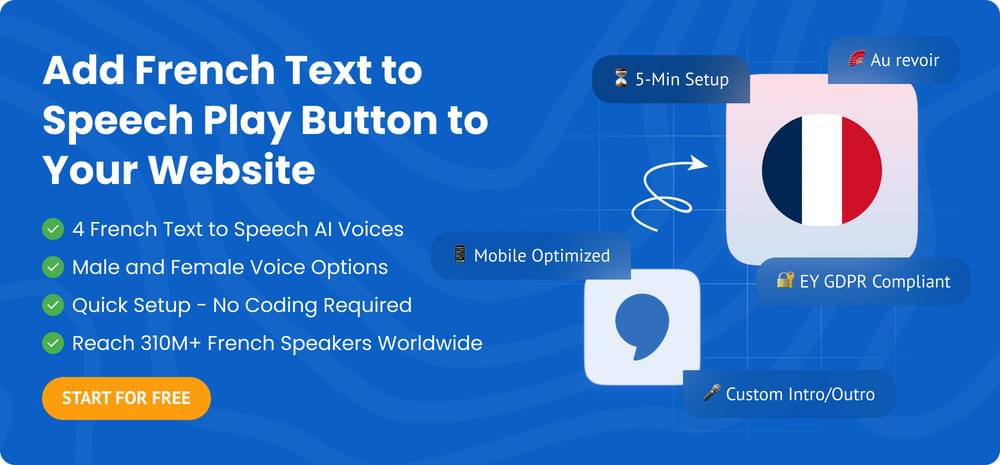
WebsiteVoice offers four French AI voices, each with a distinct sound and regional character:
1. French (Raphaël) (Male Voice)
Raphaël is a confident, natural-sounding male voice in standard French. He reads clearly and at a natural pace, making him a solid choice for blogs, news sites, and professional content targeting French audiences in Europe.
2. French (Alice) (Female Voice)
Alice is a warm, clear female voice in standard French. She works well for editorial content, educational material, and any site where a friendly, approachable tone matters.
3. French Canadian (Paul) (Male Voice)
Paul speaks with a distinct Québécois accent, making him the right choice if your audience is primarily in Canada. Using a voice that sounds like your readers is a small detail that makes a big difference in how comfortable and familiar your content feels.
4. French (Jeanne) (Female Voice)
Jeanne is another natural-sounding female voice in standard French. She offers a slightly different vocal quality from Alice, giving you an alternative if you want a specific tone or style for your content.
Having four voices to choose from means you’re not locked into one option. You can pick the voice that fits your brand, your subject matter, and your audience’s expectations.
How to Add a French TTS Play Button to Your Website
Getting a French TTS play button live on your site takes just a few minutes. Here’s exactly how to do it.
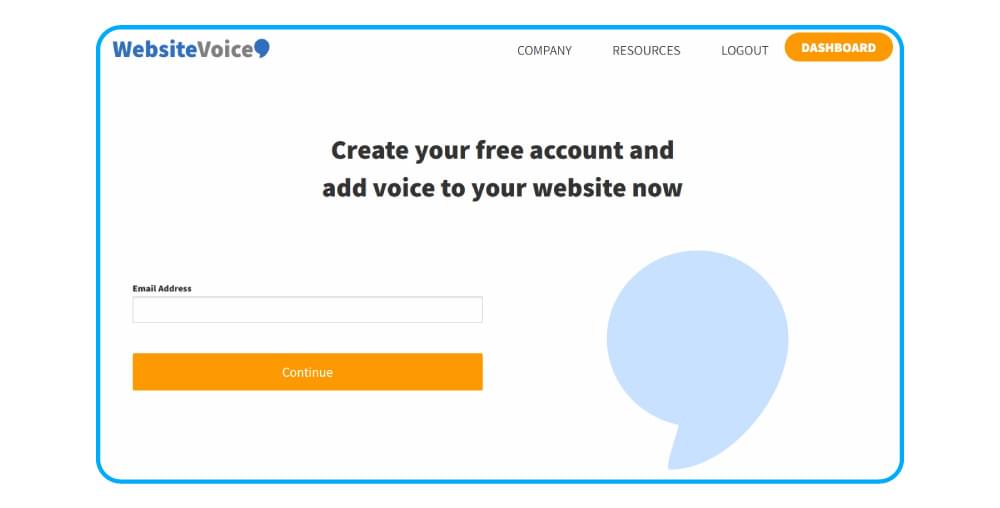
Step 1: Create a Free WebsiteVoice Account
Go to WebsiteVoice and sign up for a free 14-day trial. No credit card required is required. Once you’re in, you’ll have access to the dashboard where you configure your audio widget.
Step 2: Select Your French Voice
In the dashboard, navigate to the voice settings. You’ll see a list of all available languages and voices. Select your preferred French voice from the four options: Raphaël, Alice, Paul, or Jeanne.
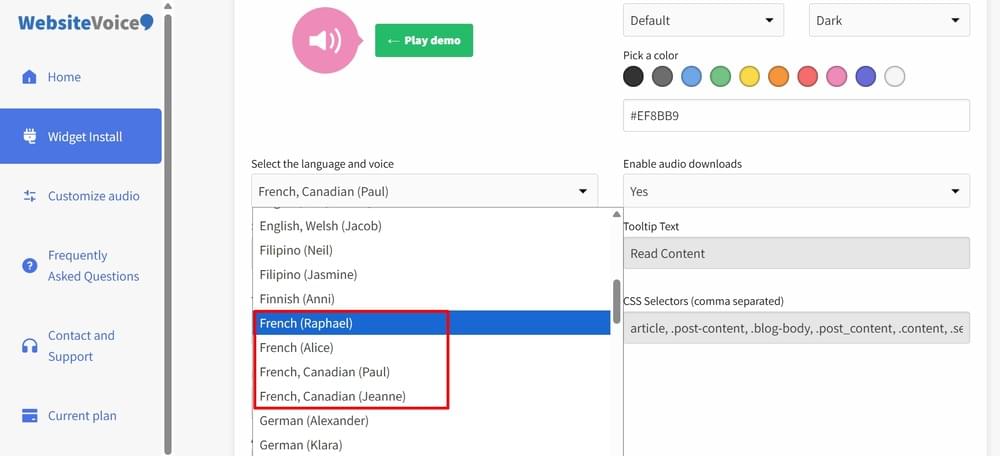
You can preview each voice before committing, so take a moment to listen and pick the one that feels right for your content.
Step 3: Customize Your Audio Player
WebsiteVoice lets you customize the look of the play button to match your website’s design. You can adjust the player’s colors, position on the page, and style. This means the widget fits naturally into your site rather than looking like a third-party add-on.
Step 4: Copy Your Embed Code
Once you’ve configured your settings, WebsiteVoice gives you a short JavaScript snippet to add to your website. Copy it.
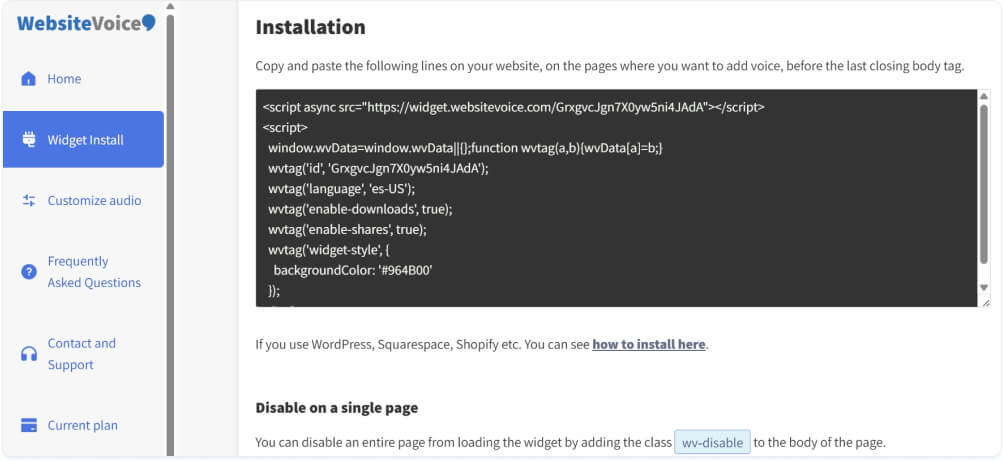
Step 5: Add the Code to Your Website
Paste the JavaScript snippet into your website’s HTML, just before the closing </body> tag. If you’re using a CMS, most platforms have a section for custom code in the site settings or page editor.
Also, authorize WebsiteVoice to integrate with your French site by adding the link under Update website section:
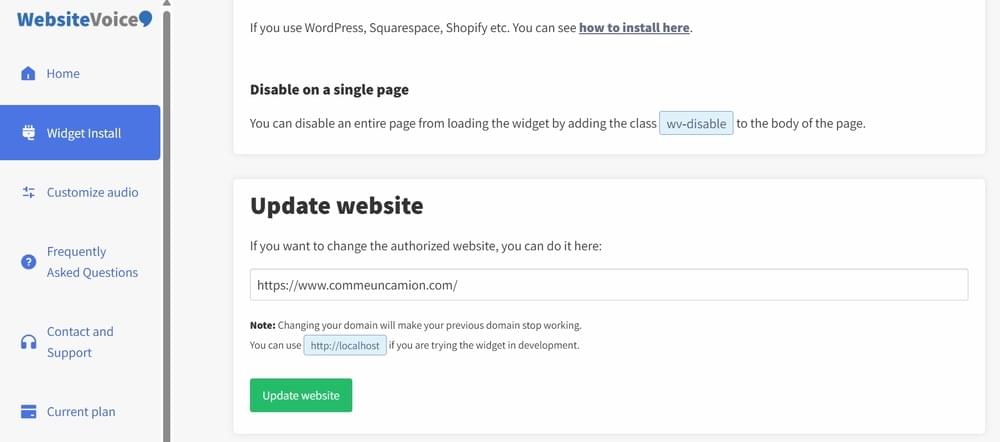
The play button will appear on your pages immediately once the code is live.
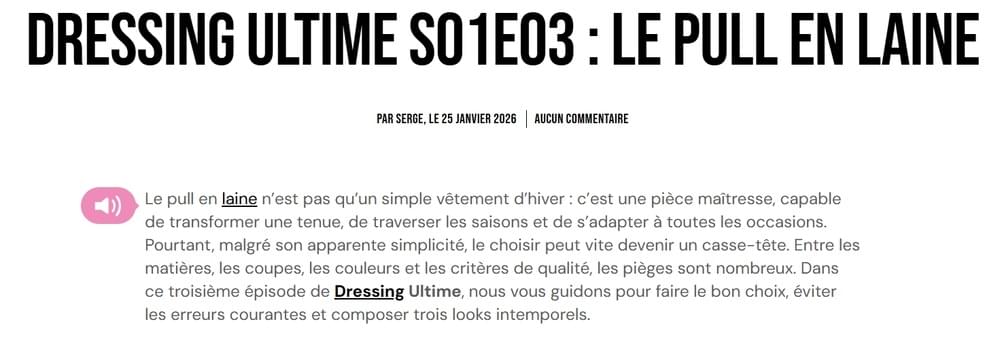
Step 6: Test It
Visit your website and click the play button. You should hear your chosen French voice reading your content. If something looks off, check that the snippet is placed correctly and that your language settings are saved in the dashboard.
Related: Getting Started with WebsiteVoice
Which Platforms Does It Work On?
WebsiteVoice works on any website platform that allows you to add custom JavaScript. That covers most major CMS platforms and website builders, including:
- WordPress: Use the dedicated plugin or add the code manually. See the WordPress Text-to-Speech Guide.
- Shopify: Works well for French-language product pages or stores targeting Canadian or European markets. See the Shopify Text-to-Speech Guide.
- Wix: Add via the custom code editor. See the Wix Text-to-Speech Guide.
- Squarespace: Works through the code injection feature. See the Squarespace Text-to-Speech Guide.
- Webflow: Supported with custom embed blocks. See the Webflow Text-to-Speech Accessibility Guide.
If you’re a developer building a custom site, you can also integrate via the JavaScript Text-to-Speech API.
Conclusion
Adding a French text-to-speech play button to your website is one of the simplest ways to show French-speaking visitors that you’ve built something for them. With four natural AI voices — Raphaël, Alice, Paul, and Jeanne, you can match the right tone, gender, and regional accent to your audience.
The setup takes minutes, works on every major platform, and requires no recording or audio editing on your part. Your French content just becomes listenable, automatically.
If you’re ready to give your French-speaking readers a better experience, try WebsiteVoice free for 14 days.