text to speech tutorials
How to Add Text to Speech Play Button to Ghost CMS?
There are over 60,000+ websites that use the Ghost CMS. While this user base represents only about 0.1% content management systems (CMS) market share, Ghost is used by many large-scale brands and well-known companies like Duolingo, Apple (Newsroom), Unsplash, FreeCodeCamp, Cloudflare, and OpenAI, among many others.
Such an impressive client list of Ghost is proof of the fact that it is a highly powerful, efficient, and secure CMS loved by users and companies of all types and sizes.
But what if there was a way to further extend its functionalities and reach even more people through Ghost-powered website?
Well, there is!

You can add text-to-speech functionality to Ghost CMS to ensure anyone who visits your website have the option of listening to the written website on your site. This is a very powerful way of increasing engagement and accessibility of your content.
So, without any delays, let’s go through the step-by-step process.
Step-by-Step Guide to Add Text-to-Speech Play Button to Ghost Sites
Here’s how you can add the TTS functionality to your Ghost websites in the form of a play button with WebsiteVoice.
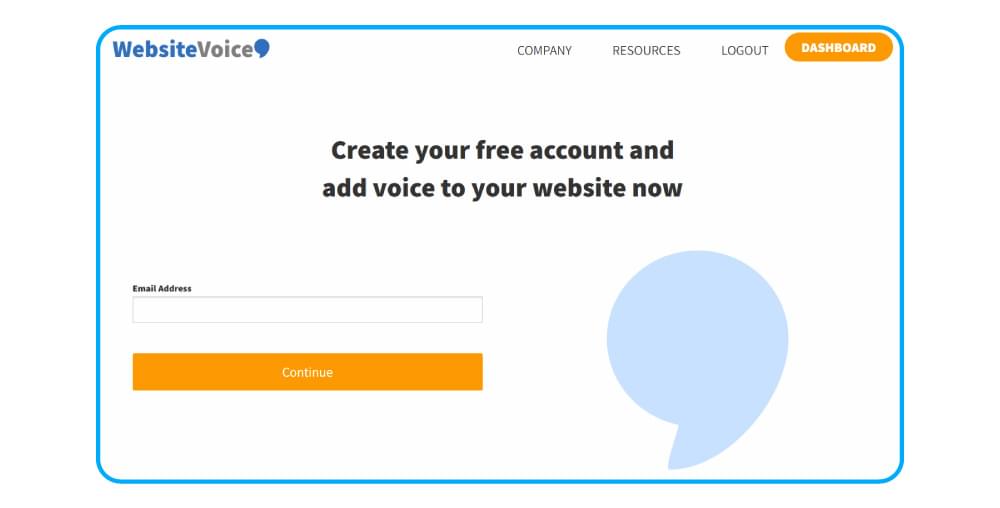
1. First of all, register on WebsiteVoice to access the TTS play button code. If you don’t want to make a long-term commitment, you can start with a 14-day free trial.
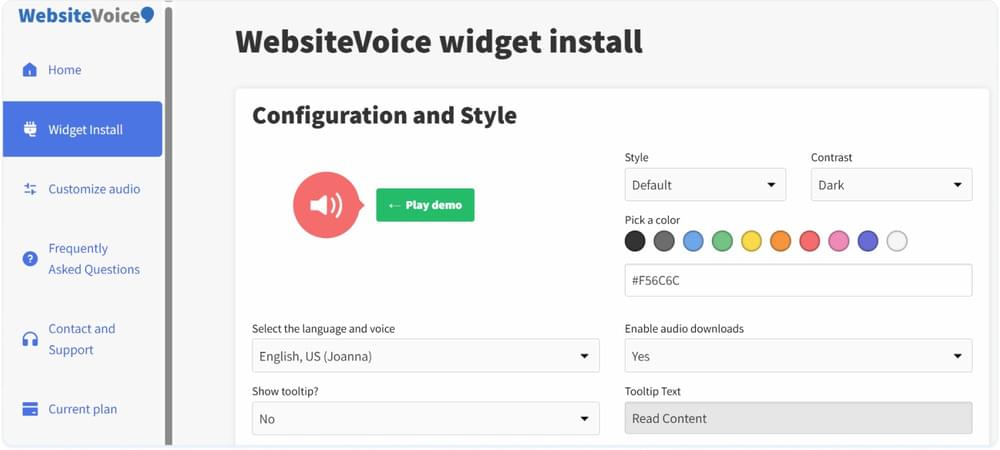
2. Configure the appearance and functionality of the WebsiteVoice play button. You can choose from 60+ realistic AI voices that cover 35+ languages and accents. You can also modify and choose the color and style as per your Ghost’s site aesthetics.
Several other options are available, such as the ability to allow users to download content in listenable audio format, social sharing, speed modification, and custom intro/outro messages.
3. Copy the simple JavaScript code generated as per your selected options under the Installation section.
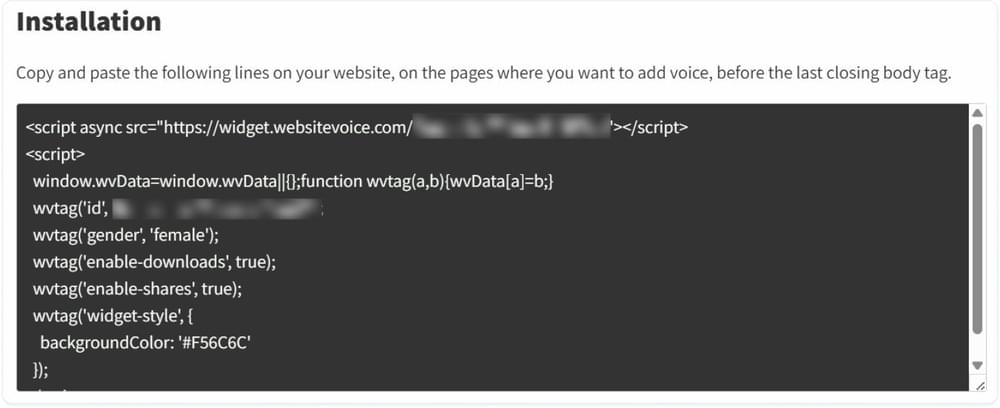
4. Under the Update Website section, add the link to your Ghost website. This will ensure the successful integration of WebsiteVoice’s TTS functionality with your site.
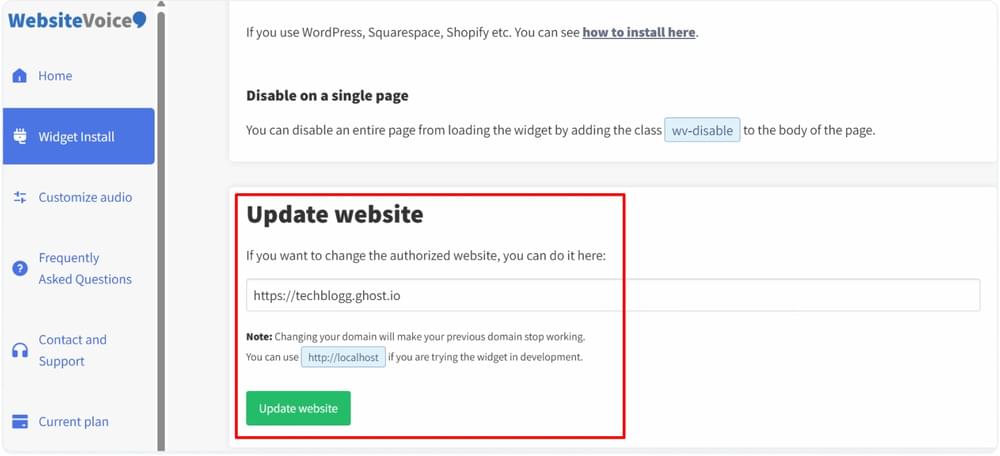
Now that everything is set up in WebsiteVoice and you have the code to the play button, let’s move to the Ghost CMS.
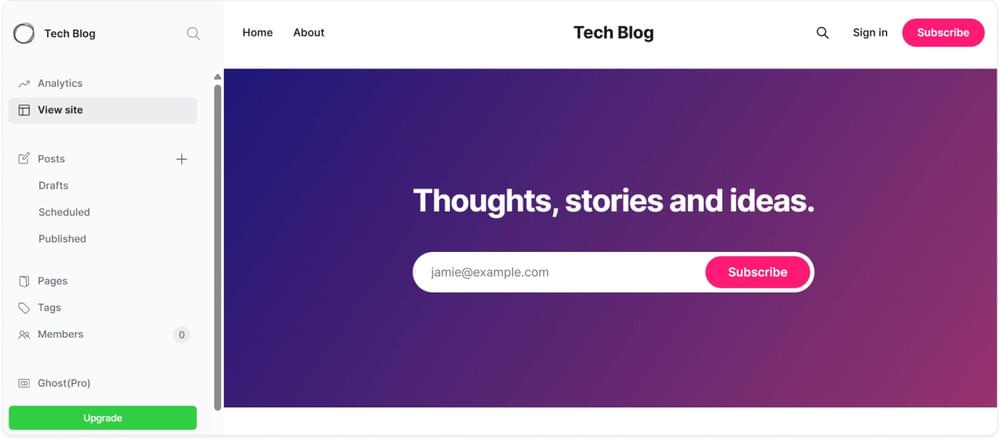
5. Open your Ghost site admin panel to configure it and add the play button.
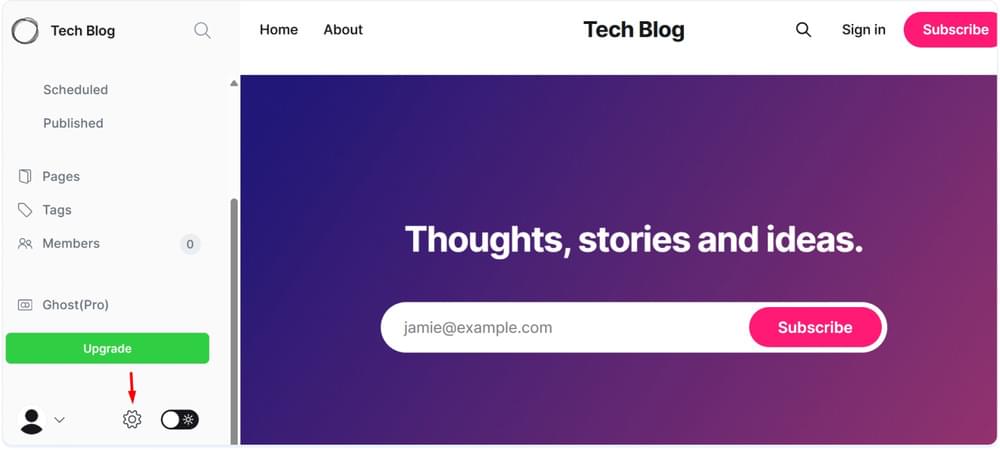
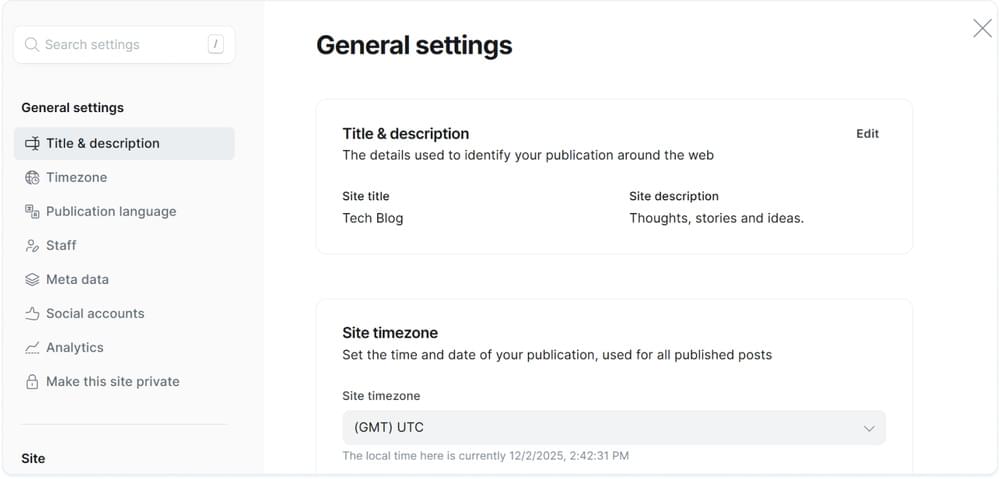
6. Scroll down the bar located on the left side and click on the settings icon to access further settings.
7. In Ghost CMS settings, you get a lot of options to configure your Ghost website. When you want to integrate WebsiteVoice text-to-speech play button, you have to paste the code you copied before. To do that, scroll down the settings bar to access advance options or simply search for Code Injection in the search bar.
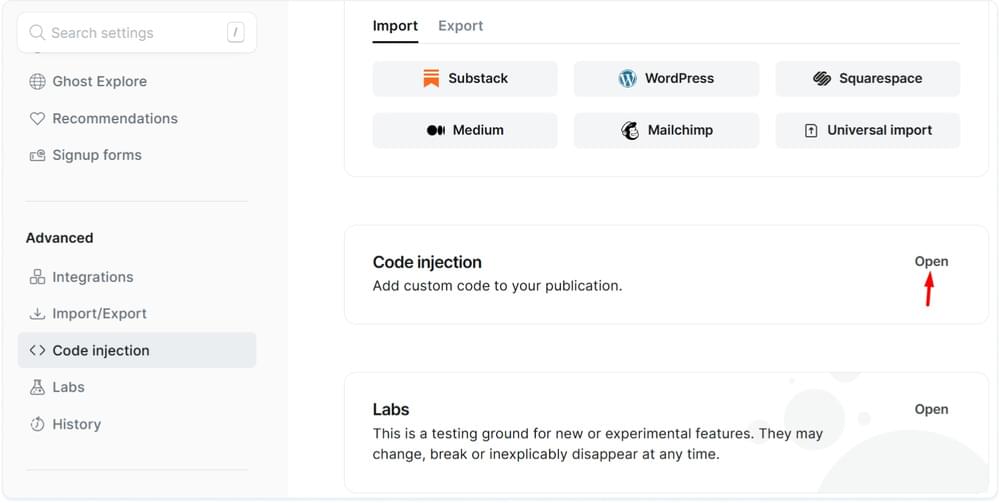
8. Open Code Injection to add the JavaScript code.
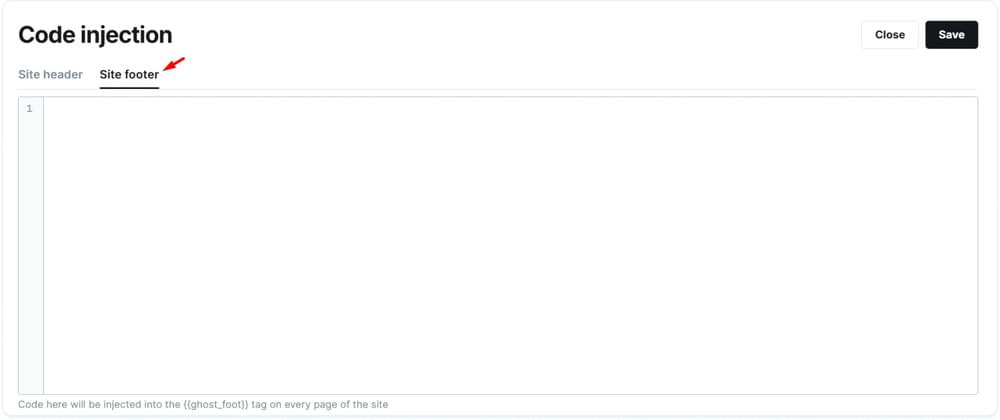
9. Choose the Site footer section to add paste the WebsiteVoice’s text-to-speech play button code.
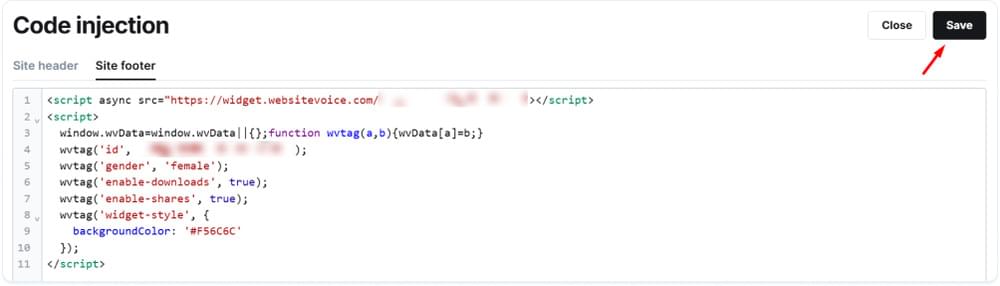
10. Paste the code and click the Save button.
Done!
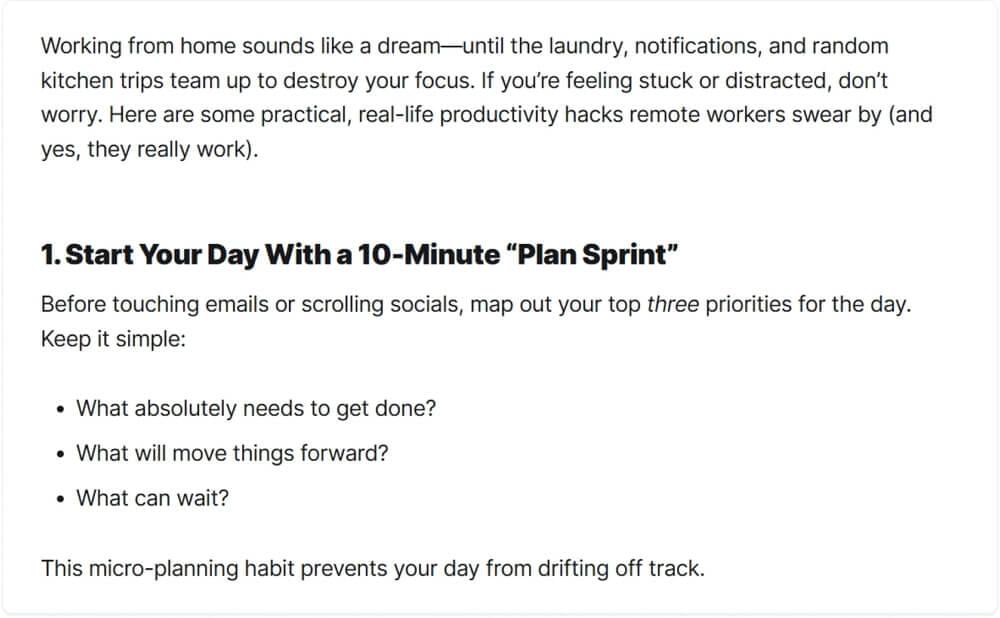
Here’s a Ghost website’s blog without the WebsiteVoice text-to-speech play button:
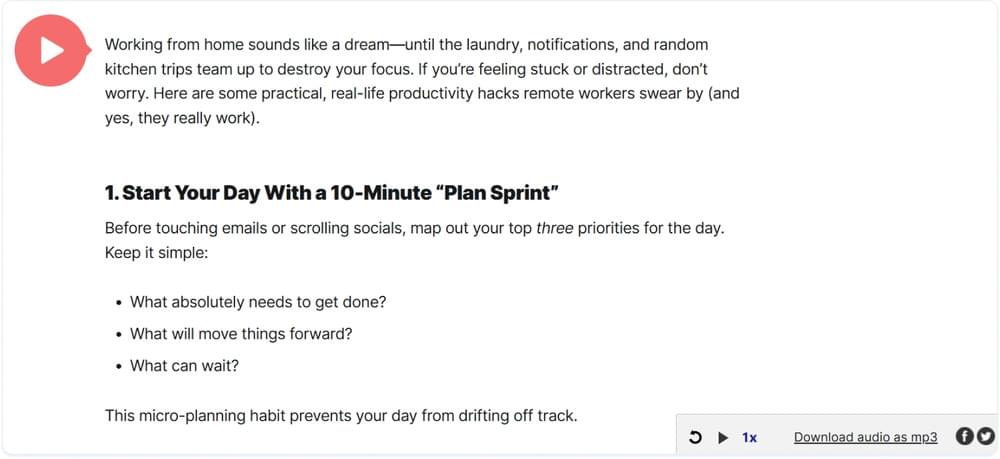
After pasting the WebsiteVoice’s widget code, the play button will appear on your Ghost website and hence, allow users to listen to the website content.
Why Add Text to Speech Play Button to Ghost CMS?
If you are still wondering whether you should add the WebsiteVoice play button to your Ghost website, just consider these benefits:
- Increase the accessibility of your website content and blogs for visually-impaired readers.
- Provide your visitors with the option of listening to your long-form articles on the go, just like a podcast.
- Improve engagement, retention, and time-on-page.
- Minimize bounce rates by providing an alternative way of content consumption.
- Improve the overall user experience, which also helps in SEO.
- Give your Ghost blog a modern and interactive feel.
- Reach a wider audience of multi-tasker and mobile users.
Conclusion
Adding a text-to-speech play button to your Ghost CMS is a smart upgrade that can change the way people consume your content. With the WebsiteVoice TTS functionality, you can turn every website content and blog post into an instant and engaging audio experience, ultimately making your site highly user-friendly and engaging.
So, sign-up on WebsiteVoice today for free and install the TTS play button to give your Ghost site a modern and interactive look. If you have any questions or face any issue in the integration process, you can contact us.
Note: This guide is about WebsiteVoice integration with Ghost. If you are using another platform, check out our step-by-step guides for WordPress, Joomla, Squarespace, Blogger, Shopify, Wix, Webflow, Drupaland custom websites.
FAQs About Adding WebsiteVoice to Ghost CMS
Can I add WebsiteVoice to Ghost without coding?
Yes. Ghost has a built-in Code Injection feature through which you can add a WebsiteVoice play button by simply pasting the script into the Site Footer section.
Do I need a paid Ghost plan to add custom code?
WebsiteVoice and Ghost both have a 14-day free trial. You can try out the Ghost platform and TTS play button during this period. But after the 14-day trial expires, you have to buy the paid plans.
How to embed AI voice narration on Ghost CMS pages and blog?
You can easily embed AI voice narration on your Ghost-powered website pages and blog posts using WebsiteVoice. All you need to do is sign-up on WebsiteVoice, style the TTS play button, copy the script, and paste it into your site’s footer via the Code Injection feature in Ghost CMS. You can choose from
Will the TTS play button appear on every post automatically?
Yes. Once you add the WebsiteVoice JavaScript code to the footer, it will appear on every post automatically.
Can I customize how the WebsiteVoice button looks?
Absolutely. WebsiteVoice has many styling and customization options in the widget’s dashboard to match your site’s branding.
What is the best text-to-speech integration for Ghost CMS?
WebsiteVoice is the best text-to-speech integration for Ghost CMS because it is easy to implement with just a few clicks. You can also easily style the play button and add custom intro or outro messages.