text to speech tutorials
How to Add Text to Speech Play Button to BigCommerce?
BigCommerce is one of the most popular e-commerce platforms that powers over 40,000 stores worldwide. You can increase the engagement and appeal of your BigCommerce stores by adding text-to-speech functionality.
It is all possible with WebsiteVoice, a modern TTS solution. All you have to do is add the WebsiteVoice’s play button widget script into your store and let the users listen to your blogs, website content, and product descriptions.

Let’s dive right into it.
Step-by-Step Guide to Add Text to Speech Play Button to BigCommerce
Here’s how a BigCommerce store look like without the text-to-speech play button:
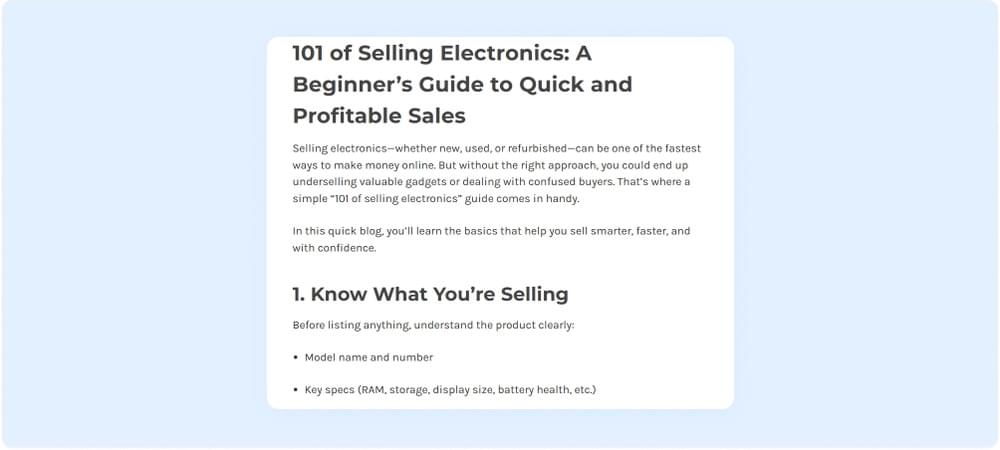
Let’s see how you can add the TTS widget here:
1. Create an account of WebsiteVoice. You can start with a 14-day free trial.

2. Adjust the play button’s appearance and colors as per your site’s aesthetics.
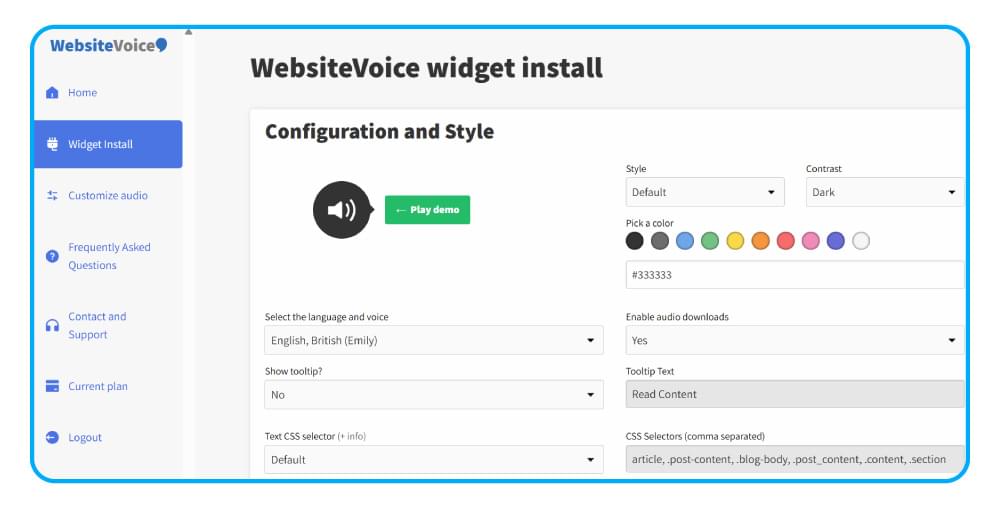
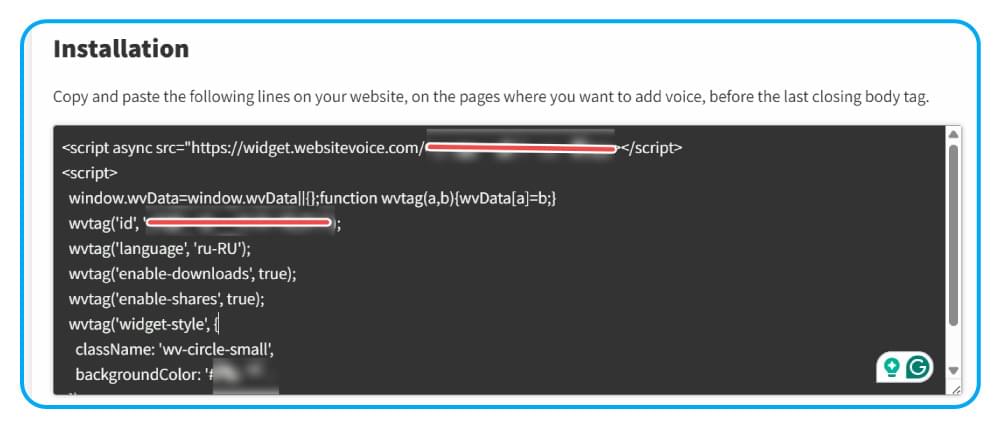
3. Once you have configured the play button, scroll down and copy the JavaScript code from the Installation section.
4. Add the link of your BigCommerce store under the Update Website section to provide relevant permissions.
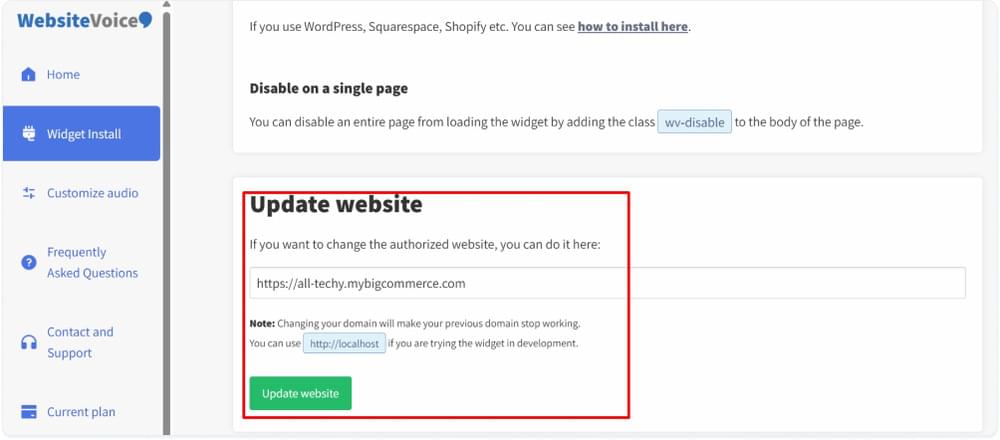
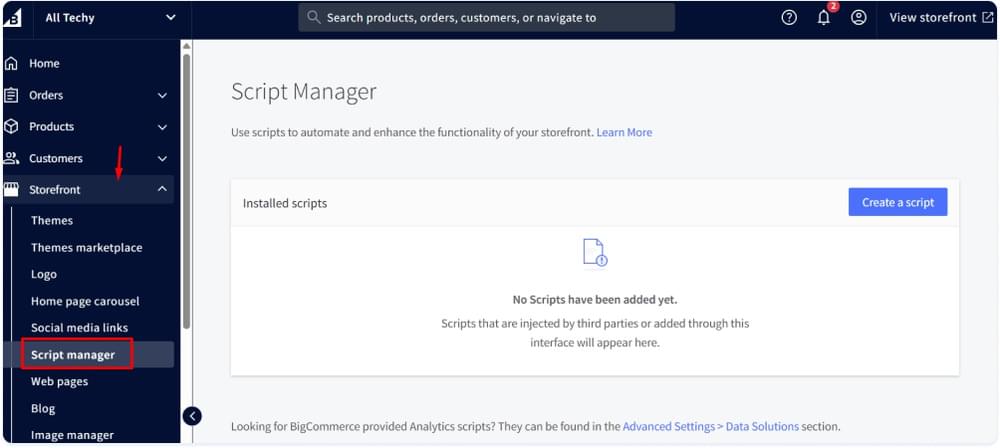
5. Open the admin panel of your BigCommerce website and navigate to Script manager under the Storefront options.
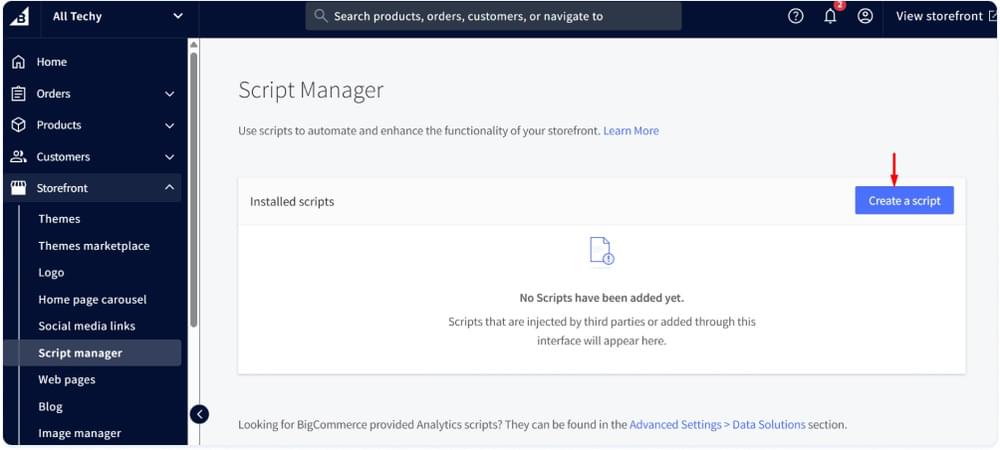
6. Choose to Create a script by clicking on the button.
7. Configure the script by naming it, such as WebsiteVoice, and choosing Footer in Placement.
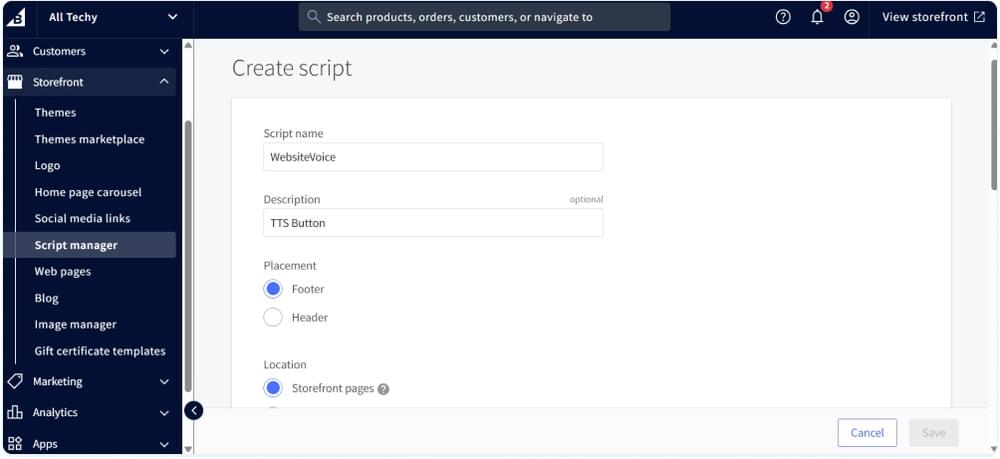
8. You can also choose where exactly you want the play button to appear on your BigCommerce store. Choose Essential under Script category.
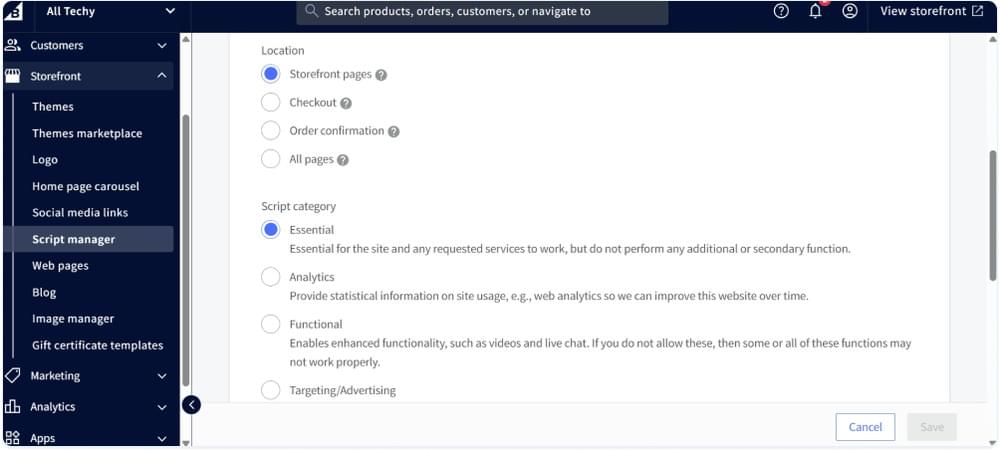
9. Paste the copied script and click the Save button.
Done!
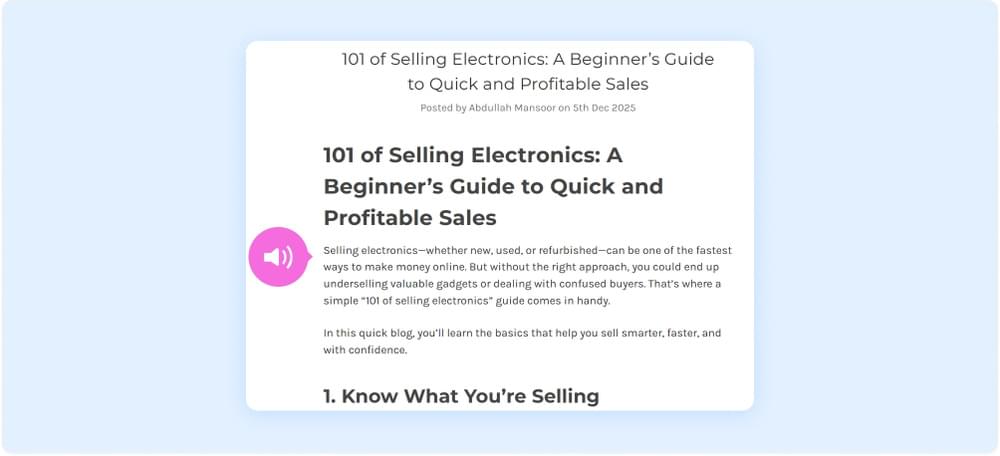
In these simple steps, the TTS play button will appear on your BigCommerce store.
Conclusion
You can easily follow these steps and add TTS to your online store to boost engagement. So, sign up at WebsiteVoice for free! If you have any questions or face any issues in this process, you can contact us.